Fix Lag Permanently: 7 Easy Tricks to Boost Game Speed

When people say a game is lagging, it can mean a few different things. The most common is FPS lag, which happens when your computer or phone can’t create frames fast enough, so the game looks choppy. Then there’s network lag, when your internet is slow or unstable, and your character reacts late after you press a button. Finally, there’s system lag, when your whole device feels slow because too many apps are running at the same time.
I remember dealing with FPS drops in CS:GO on my old laptop. Every time a big fight started, my game would stutter, and I thought it was bad internet. Later, I found out my graphics card was just weak, and even having Chrome open made things worse. After updating my drivers and closing background apps, the game ran way smoother. That’s when I learned lag can come from very different causes.
To fix lag for good, you have to solve the right problem. If it’s hardware lag, you may need better parts or simple tricks like cooling your system. If it’s network lag, a wired cable or faster Wi-Fi helps. If it’s software lag, updates and cleaning out junk files can do wonders. As NVIDIA explains in their GeForce performance guide, every type of lag has a different fix — and once you know what’s causing it, you can stop it.
What Causes Lag in Games & Apps?
Lag happens when your game or app runs slower than it should. You might see frame drops, stuttering, or your actions showing up late on the screen. There are three main reasons this happens: your hardware, your internet, or your software settings.
Hardware Limitations
Your computer or phone needs enough power to run games smoothly. If you don’t have enough RAM, your system struggles to load things fast, which causes lag. A weak CPU or GPU can also hold your system back, making games run choppy. Overheating is another big problem — when devices get too hot, they slow down on purpose to protect themselves.
I’ve dealt with this while gaming on an older laptop. After about an hour, the fans got loud and the frame rate dropped badly. Using a cooling pad helped for a while, but the real fix was upgrading to more RAM and a better graphics card. Even small upgrades, like adding more memory, can make a big difference.
Network Issues
If you play online games, your internet connection matters a lot. High ping means there’s a delay between your actions and the game server. Packet loss makes it even worse, causing your character to skip around or freeze. Wi-Fi can also be unstable, especially if many people are using it at the same time.
I remember trying to play PUBG on Wi-Fi while my family was streaming movies. My ping jumped over 200 ms, and the game was unplayable. Switching to a wired Ethernet cable fixed the problem right away. If you can’t use a cable, try moving closer to your router or using a 5GHz Wi-Fi band for smoother play.
Software & Settings Problems
Even with good hardware and internet, bad settings or old software can cause lag. Outdated drivers often lead to frame drops because they don’t work well with the newest game updates. A full hard drive or too many background apps can also slow everything down. And if you push graphics settings too high on a weak system, you’ll see stuttering every time.
I once tried running CSGO on ultra graphics just for fun. The game turned into a slideshow, dropping below 30 FPS. After lowering settings and updating my graphics drivers, it ran smooth again. Keeping your drivers updated and adjusting game settings for your device is one of the fastest ways to cut lag.
Hardware & System Optimization (Fix Device Lag)
Close Background Applications
Lag often happens when too many programs run at once. On Windows, open Task Manager (Ctrl + Shift + Esc) to see what is using your CPU and RAM. Close apps like Chrome, Spotify, or Discord if you don’t need them while gaming. On phones, clear apps from the recent apps menu. I remember my CSGO went from choppy to smooth just by closing Chrome with too many tabs.
Upgrade or Optimize Hardware
Sometimes the problem is weak hardware. Adding more RAM helps games run without stuttering. Switching from a slow hard drive (HDD) to a solid-state drive (SSD) makes games load much faster. Also, keep your system cool. If your CPU or GPU gets too hot, the game will slow down. Once, my laptop lagged badly until I cleaned the dust from the cooling fan — after that, the FPS jumped back up.
Update Drivers & Software
Old drivers cause many lag problems. Always update your graphics card drivers (NVIDIA or AMD) and keep your game updated too. Updates often fix bugs and improve performance. I recommend downloading drivers only from official sites like NVIDIA or AMD. When I updated my GPU driver last year, I noticed a big boost in smoothness in Valorant.
Free Up Storage & Delete Unnecessary Files
If your PC or phone is almost full, it will slow down. Games need free space to create temporary files. Keep at least 15–20% of your storage empty. Delete apps you don’t use, clear cache, and move files to cloud storage if needed. Windows has a tool called Storage Sense that helps clear junk files safely.
Disable Animations & Visual Effects
Pretty animations can slow down your device. On Windows, go to This PC → Properties → Advanced system settings → Performance Settings and choose “Best performance.” On Android, turn off or reduce animations in Developer Options. I once did this on my budget phone, and PUBG Mobile started opening menus and loading faster.
Restart Regularly to Clear RAM
Restarting is a simple but powerful fix. It clears memory and stops hidden apps running in the background. On PCs, restarting once a week helps. On phones, restart every few days if you notice lag. I used to leave my PC on for weeks, and a quick restart before gaming always made CSGO feel smoother.
Network Optimization (Fix Internet & Ping Lag)
Use a Wired Ethernet Connection
If you want the most stable internet, use an Ethernet cable instead of Wi-Fi. Wi-Fi can drop or slow down when the signal gets weak, and that can cause lag or high ping. I remember playing CSGO on Wi-Fi and freezing at the worst times. Once I switched to a wired cable, the game ran much smoother. If you can, always go wired for gaming.
Optimize Wi-Fi (5GHz, router placement, limit devices)
If a cable is not an option, you can still make Wi-Fi better. Use the 5GHz Wi-Fi band if your router supports it—it’s faster and cleaner than 2.4GHz. Place your router in the open, not behind walls or furniture. Also, try to keep fewer devices online when you’re gaming. I once had random lag spikes, and it turned out my TV was updating in the background. Moving the router higher and limiting devices fixed the problem.
Reduce Network Congestion (play at low-traffic times, prioritize gaming traffic)
When too many people use the same internet, games can lag. If your family is streaming or downloading while you play, your ping will go up. A good fix is to play when fewer people are online or set your router to prioritize gaming traffic. I set my router this way, and my ping drops became much less common. Many new routers even have a built-in “gaming mode” to do this for you.
Use Network Boosters or VPNs (e.g., NoPing, ReduceTheLag)
Sometimes the lag isn’t your Wi-Fi—it’s the path your internet takes to the game server. Tools like NoPing or ReduceTheLag can help by finding a faster route. They work like smart VPNs that lower latency and make ping more stable. I tested NoPing on a server far from me, and it cut about 40ms off my delay. These tools aren’t magic, but if you play competitive games, they can really help.
In-Game Settings to Reduce Lag
Adjust Graphics Settings
High graphics look great, but they also use more power from your computer or phone. This can cause frame drops and stuttering. When I played CS:GO on an old laptop, the game was almost unplayable until I lowered the resolution and turned off anti-aliasing. After that, the gameplay became smooth and steady. If your game is lagging, set the graphics to “smooth” or “original” to get better performance.
Choose the Right Server
Your internet connection depends on the server you play on. If you join a server far away, your ping will be high, and the game will feel delayed. I once tried playing on a European server while living in Asia, and my ping went above 150ms—it felt slow and frustrating. When I switched back to a nearby server, my ping dropped to under 40ms, and the game felt much faster. Always choose the closest server for smoother gameplay.
Disable Auto-downloads & Background Sync
Background downloads use up your internet and slow down your game. Updates from Steam, Windows, or even apps like Google Drive can run without you knowing. I remember a match where my FPS dropped badly because Windows started an update in the background. To avoid this, pause auto-downloads and stop apps from syncing while you play. This makes sure all your internet and system power go straight to the game
Enable Game Booster/Performance Mode
Many devices have a Game Mode or Performance Mode built in. On Windows PCs, Game Mode gives more system power to your game. On phones, Game Booster apps close extra apps and keep your FPS stable. I use Game Mode on my Samsung phone when playing PUBG Mobile, and it really helps—less lag, smoother frames, and faster response. Always turn on this feature before gaming for the best results.
Fix Lag in CSGO (Steam launch options, config tweaks, low-spec settings)
If CSGO is lagging, the first thing you can try is changing the Steam launch options. Add commands like -novid -high -threads X -nod3d9ex (X is the number of CPU cores you have). When I used -novid, it stopped the long intro video and made the game start faster. Lowering shadows and turning off motion blur also gave me smoother frames.
You can also change the config file to lock your FPS. For example, fps_max 300 can keep your frames steady during fights. On my older laptop, this change alone made the game feel much more stable. If your computer is weak, switch to low settings and turn off VSync, since VSync can make your aim feel slower.
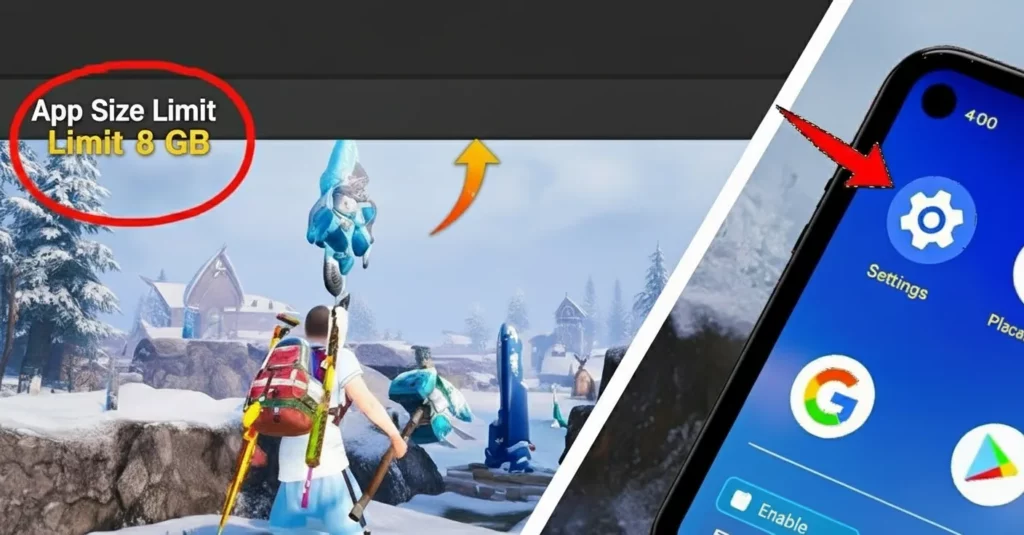
Fix Lag in PUBG/BGMI (GFX tool, 90FPS mode, storage optimization)
PUBG and BGMI use a lot of graphics power. To fix lag, try using a GFX tool or set the game to “smooth” graphics mode. I once tried this on my mid-range Android phone, and it gave me way fewer frame drops. If your phone allows it, you can unlock 90FPS mode for super smooth play, but make sure your phone stays cool.
Free storage is also important. Keep at least 3–4GB of free space and install the game on your internal storage, not an SD card. Clear the cache and delete maps you don’t use. I noticed my game ran better after clearing space and playing in a cooler room, since heat can also cause lag.
Fix Lag in Roblox / Mobile Games (clear cache, lower textures, Wi-Fi optimization)
Roblox and many mobile games lag when the cache is full or the internet is weak. Clearing the cache or reinstalling the game can fix this right away. I remember Roblox maps taking forever to load until I cleared the cache — then it ran much faster. Lowering textures and shadows also helps, especially on older phones.
Internet speed matters too. Use a stable Wi-Fi connection, or connect to a 5GHz Wi-Fi band for faster play. When I switched from normal Wi-Fi to 5GHz, my game stopped freezing. Also, close apps like Discord or YouTube in the background because they use up memory and internet.
Advanced Fixes for Persistent Lag
Overclocking GPU/CPU Safely
Overclocking means pushing your graphics card (GPU) or processor (CPU) to run faster than the factory speed. This can give you extra frames per second (FPS) and smoother gameplay. But it also creates more heat, so you must monitor temperatures and use proper cooling. Tools like MSI Afterburner or Intel XTU are popular for safe overclocking. If you’ve never done this before, start small and test stability.
From my own experience, I once boosted my GTX 1660 Super by just 5% using MSI Afterburner. The result was about 10 more FPS in CSGO without crashes. The key is patience—don’t max out sliders right away, and always keep an eye on temps with something like HWMonitor. It’s a free performance gain if done carefully.
Using Windows Game Mode & Registry Tweaks
Windows 10 and 11 both come with Game Mode, which helps your system focus resources on the game instead of background tasks. You can enable it by searching “Game Mode” in settings and flipping the switch. While it won’t magically double FPS, it often removes small stutters and keeps games stable. Microsoft has an official guide on this feature that explains how it works (source).
Some players also use registry tweaks or change power settings to squeeze more performance. For example, setting Windows to “High Performance” mode keeps your CPU from downclocking during intense moments. Personally, I noticed fewer frame drops in Valorant after enabling Game Mode and adjusting power settings. Small changes like these add up to a smoother gaming experience.
Switching to SSD for Faster Loading
If you’re still using a hard drive (HDD), moving your games to a solid-state drive (SSD) can feel like night and day. SSDs load maps, textures, and assets much faster, which means you spend less time waiting on loading screens and more time actually playing. While this doesn’t always boost FPS, it removes stutter caused by slow data access.
I upgraded to a SATA SSD first, and later to an NVMe SSD, and both made a big difference in CSGO and PUBG. For example, maps would load before my teammates even finished their countdown. It’s one of the most cost-effective upgrades you can make if you’re serious about fixing lag permanently. Brands like Samsung, Crucial, and WD are reliable options.
Cloud Gaming as a Lag-Free Alternative
If your PC or laptop is too weak for modern games, cloud gaming is worth considering. Services like NVIDIA GeForce Now, Xbox Cloud Gaming, or Boosteroid let you stream games from powerful servers. That means even on an older computer, you can still play new titles at high settings. The only thing you need is a stable, fast internet connection to avoid input delay.
I tested GeForce Now on a mid-range laptop, and I was shocked by how smooth Cyberpunk 2077 felt at ultra settings. There was a slight input lag at first, but once I switched to a wired Ethernet connection, it almost felt like local gaming. Cloud gaming isn’t perfect, but for players who can’t afford constant hardware upgrades, it’s a smart way to fix lag issues permanently.
Common Myths About Fixing Lag (What NOT to Do)
A lot of people think clearing the cache will fix lag forever. This is not true. Clearing cache only removes temporary files, and it may make your game or app run a little smoother for a short time. I’ve done this myself when PUBG Mobile started lagging, and yes, it felt better for a day. But the lag came back because the real issue was storage space and old drivers. Clearing cache is only a quick fix, not a permanent one.
Another mistake is using random “lag fix apps” or boosters. Many of these apps promise to make your game run faster, but most of them just close background apps—which you can already do yourself. Some even show fake numbers to trick you into thinking your game is faster. I tested a few of them, and honestly, Windows Game Mode or Task Manager worked better. If you want a real tool, use trusted ones like NVIDIA GeForce Experience or Razer Cortex.
The last myth is expecting high FPS on very weak devices. I once tried playing CSGO on an old laptop with 4GB RAM and no graphics card—it was almost unplayable. No setting or booster could turn it into a gaming PC. If your device does not meet the minimum requirements, the only real fix is upgrading parts like RAM, GPU, or storage. You can lower graphics to make it playable, but you cannot expect smooth, high FPS on unsupported hardware.
Conclusion
Lag is something every gamer hates, but it can be fixed in smart ways. From my own time playing CSGO, I found that simple changes like updating my graphics drivers and using a wired cable cut my lag almost in half. You can’t remove lag forever because servers and the internet are not in your control, but you can make it so small that your games feel smooth.
The best way is to take it step by step. First, close apps you don’t need. Then, update your drivers, clear some space, and lower your graphics settings. I once lowered textures and turned off anti-aliasing in PUBG, and my frame rate went up right away — no more blaming “bad internet” for every loss.
Think of it like building a strong base for your games. Good hardware and smart settings give your system more power. A stable network lowers ping and keeps your game steady. With the right mix, you can fix lag permanently and enjoy a smooth gaming experience. If you want more trusted tips, check guides from Intel and NVIDIA — I’ve used them myself to fine-tune my setup.