How to Move Apps to SD Card Fast: 7 Simple Android Tricks

Storage on an Android phone can fill up really fast. Apps, photos, and videos take up space, and when your phone gets full, it can slow down or stop working properly. I’ve had my phone warn me about low storage many times—it’s frustrating and makes it hard to install new apps. Learning how to manage your phone’s storage can help it run faster and make room for the apps and files you really need.
Using an SD card also gives you more flexibility. You can put apps that use a lot of space or that you don’t use every day on the card. This keeps your phone organized and helps the internal memory last longer. Moving apps to SD card is a smart way to make your Android phone work better and stay tidy.

Understanding Android Storage
Internal Storage vs SD Card (Pros and Cons)
Your Android phone has internal storage built in and you can also use an SD card to store apps and files. Internal storage is faster and more reliable, which is good for apps you use every day like games or social media. SD cards give you extra space for things like photos, videos, or bigger apps, but they can be a little slower. From my experience, keeping your main apps in internal storage and moving larger apps or media to an SD card keeps your phone fast and gives you more space.
Adoptable Storage vs Portable Storage
An SD card can be used as portable storage or adoptable storage. Portable storage is simple—you can save files and move the card to another device. Adoptable storage makes the SD card act like part of your phone’s internal memory. This helps if your phone is low on space, but not all phones support it, and removing the SD card can break apps stored there. I usually use adoptable storage only on phones with very little memory because it keeps the phone smooth but locks the SD card to that device.
Apps That Cannot Be Moved to SD Card
Not all apps can be moved to an SD card. System apps, pre-installed apps, and some important apps need to stay on internal storage. If you try, the “Move” option might be grayed out. From my experience, apps like Google Play Services, messaging apps, or banking apps usually cannot move, but that’s okay because they don’t take up much space. The trick is to focus on apps you can move, like big games or media apps, to free up real storage.
Preparations Before Moving Apps

Before you move apps to your SD card, make sure the card works well with your phone. Not all SD cards fit every device, and some may be too slow. I’ve seen friends use cheap cards, and their apps either crashed or didn’t move at all. Choosing a fast and compatible SD card helps your apps run smoothly after moving.
It’s also important to back up your data first. Moving apps can sometimes fail, especially if the card is full or slightly damaged. I always save my photos, videos, and app data to Google Drive or my computer before moving anything. This way, even if something goes wrong, I don’t lose my important files or app progress.
Check that your SD card is not broken or write-protected. A damaged card can make apps stop working after the move. I once tried moving apps to an older SD card, and it couldn’t finish because the card had errors. Running a quick check or formatting the SD card (after backing it up) fixes most problems. A clean, working card keeps your apps safe and running well.
How to Move Apps to SD Card on Android (Step-by-Step)
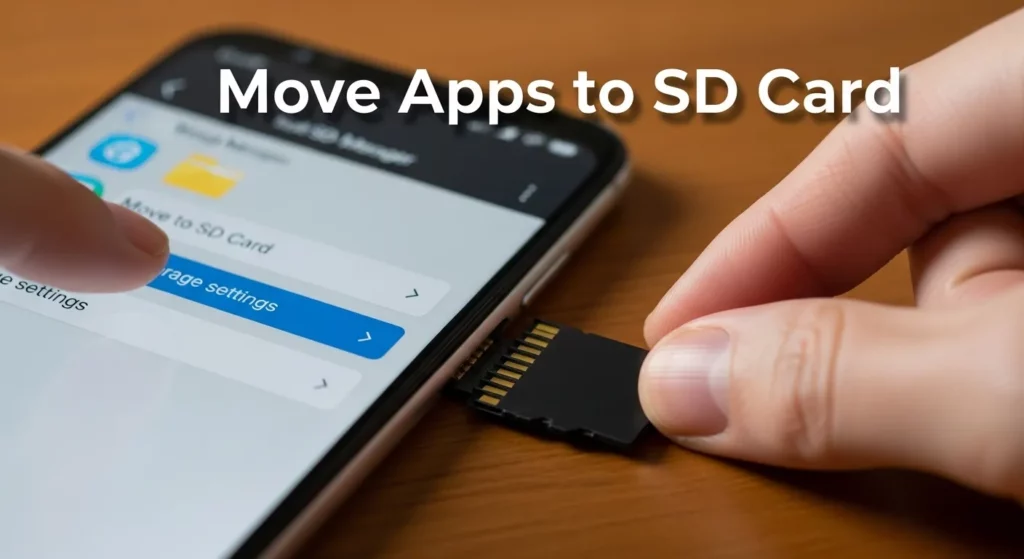
Moving apps to an SD card might seem tricky, but it’s actually easy once you know how. I’ve done this on a few Android phones, and it really helps free up space for apps that can’t move. First, open the Settings app on your phone. You can find it in your app drawer or by swiping down from the top of the screen. This is where all your phone’s storage and app options are.
Next, tap Apps or App Management. You’ll see a list of all the apps on your phone, like games or social media apps. Tap the app you want to move. On the app page, you can see how much space it uses and where it is stored. This is where you can control whether it stays on internal storage or moves to your SD card.
Now, tap Storage, and then tap Change if the option appears. Choose your SD card as the new storage place. Finally, tap Move to start moving the app. From my experience, this usually takes just a few seconds, depending on the app size. Make sure your SD card stays in the phone during the move, or the transfer can fail.
How to Move Apps to SD Card on Specific Brands
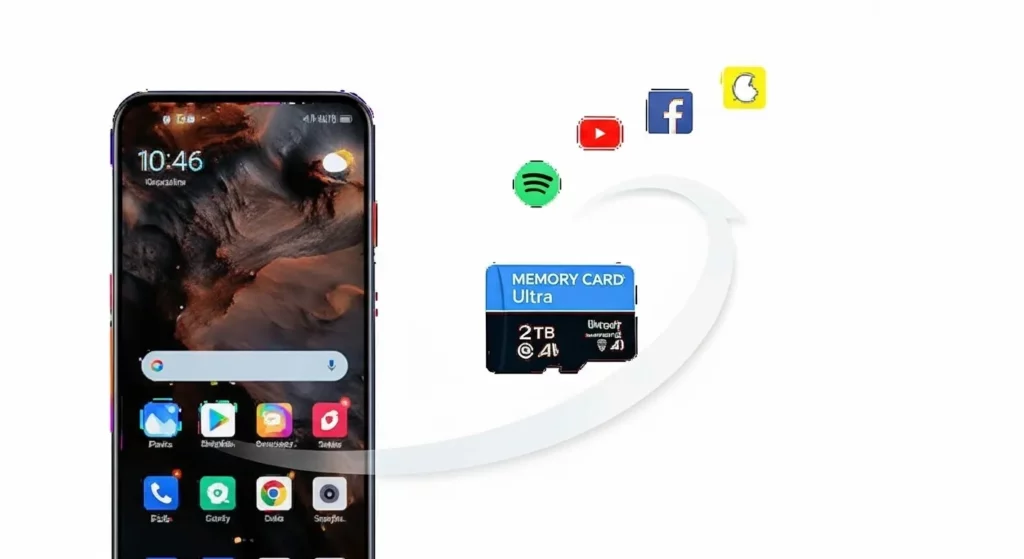
Samsung Devices
On Samsung phones, moving apps to an SD card is usually easy, but it can depend on your model. Go to Settings > Battery and Device Care > Storage, then tap Apps, pick the app, and tap Change Storage Location. From my experience, Samsung phones show which apps can move, which is very helpful. Some apps, like system apps, cannot be moved. Using an SD card set up as internal storage can help move more apps without slowing down your phone.
Xiaomi/Redmi Devices
On Xiaomi or Redmi phones, open Settings > Apps > Manage Apps, select the app, tap Storage, and choose SD Card if it shows. A tip I’ve learned: check that your SD card has enough free space before moving apps, because big apps can fail if the card is full. Some apps may not let you move them. If that happens, you can turn on Developer Options and enable Force allow apps on external to move them.
Realme Devices
Realme phones work like Xiaomi because they both use ColorOS. Go to Settings > Apps > App Management, pick the app, tap Storage, and then select SD Card. Sometimes the phone will ask you to format your SD card as internal storage before moving apps. This makes it easier to move more apps. I’ve noticed that using a fast SD card, like Class 10 or UHS-1, helps apps run smoothly and prevents slow loading.
Other Android Phones
For other Android phones like Motorola, Nokia, or Oppo, the steps are similar: Settings > Apps > Storage > Change > SD Card. Some phones may need the SD card formatted first. From my experience, the tricky part is that some apps don’t show the “Change” option. Always avoid removing the SD card while apps are moving, because it can cause errors or lose app data.
Using SD Card as Internal Storage (Adoptable Storage)
If your phone is running out of space, you can make your SD card act like internal storage. This is called adoptable storage. When you do this, your SD card becomes part of your phone’s memory, so apps and files can go there. To set it up, go to Settings > Storage, tap your SD card, and choose Format as internal. Be careful—this will erase everything on the SD card, so make sure to back up your files first. I tried this on my old phone, and it freed up enough space to install big apps that wouldn’t fit before.
Using adoptable storage has some good points. Your apps, photos, and videos can go straight to the SD card without filling up your phone. I found that apps ran smoothly when I used a fast SD card, but slower cards can make apps a bit laggy. This is a great way to get more space without buying a new phone.
There are also some limits to know. Not all apps can move to the SD card, especially system apps or ones that need to run fast. If you take the SD card out, apps on it will stop working. From my experience, adoptable storage works best if you leave the card in your phone all the time and use a high-speed card for the best performance.
Force Move Apps to SD Card (Developer Options)
Sometimes, Android phones don’t let you move certain apps to an SD card. But there is a hidden setting called “Force allow apps on external” that can help. To use it, first go to Settings > About Phone, and tap Build Number seven times. You will see a message saying developer mode is on. I tried this on my own phone, and it helped me move apps that were taking too much space in internal storage.
After turning on developer mode, go to Settings > Developer Options. Scroll down and turn on “Force allow apps on external”. Now, you can go back to your apps and move ones that didn’t have the “Change” option before. From my experience, most apps can move now, but some system apps still cannot. This trick is really useful if you want to free up space for big apps or games.
There are a few things to watch out for. Apps on the SD card may open a little slower because SD cards are usually slower than internal storage. I noticed this when I moved a few heavy apps, so it’s best to use a fast SD card (Class 10 or UHS-1). Also, never remove the SD card while apps are stored on it, or they might crash. If you follow these steps carefully, you can free up space without breaking your apps.
Common Problems and Troubleshooting
“Change” Option Not Available
Sometimes, when you try to move an app to your SD card, the “Change” button isn’t there. This happens because some apps are made to stay on your phone’s main storage. Apps like system tools, messaging apps, or some games cannot be moved. From my experience, trying to force these apps to move can cause them to crash or slow down your phone. If you really need to move an app, check if your phone has adoptable storage or developer options, but be careful.
SD Card Removed During Transfer
One common mistake is taking out the SD card while an app is moving. If that happens, the move will fail and could even damage your data. Make sure the SD card is properly in place before moving apps. Don’t move too many apps at once because it can increase errors. My tip: wait a few minutes until your phone finishes moving the app before touching the card.
App Crashes After Moving
Some apps might crash or run slowly after moving to the SD card. This usually happens because SD cards are slower than your phone’s main memory. I once moved a big game to a slow SD card, and it kept freezing—it was very frustrating. Using a fast SD card (like Class 10 or UHS-1) can prevent this. Some apps just don’t work well on SD cards, so keeping them in internal storage might be better.
Slow SD Card Affecting App Performance
Even if the move works, a slow SD card can make apps lag. Apps that need a lot of speed, like video editors or games, will struggle. I learned this the hard way when a cheap SD card made a game freeze constantly. Using a faster SD card helps apps run smoother. Checking the card for errors every now and then also keeps it working well.
Alternative Methods to Free Up Internal Storage
One simple way to free up space on your Android phone is to move your photos, videos, and music to your SD card. I used to get constant “storage full” warnings, and moving my files to the SD card solved the problem quickly. You can do this using your phone’s gallery or file manager app. Keeping big files on the SD card helps your phone run faster and keeps your internal storage lighter.
Using cloud storage is another smart way to save space. Apps like Google Drive, Dropbox, or OneDrive let you upload photos and videos online. I keep most of my pictures in Google Drive and only download the ones I need. This saves storage and keeps your files safe if your phone gets lost or broken.
Clearing cache and temporary files can also free space fast. Apps like browsers, social media, and games save small files that can add up over time. On my phone, I go to Settings > Storage > Cached Data to clear it now and then. This helps my phone stay quick and avoids annoying “storage full” alerts.
Best Apps to Help Move Apps to SD Card
Some apps on Google Play make moving other apps to your SD card easier. For example, AppMgr III (App 2 SD) and Move to SD Card show which apps can move and do it with a few taps. I tried AppMgr III, and it’s handy because it lists all the movable apps in one place.
However, not all apps can be moved because of Android rules. Using these tools on slow SD cards may make some apps lag. From my experience, it’s best to move only the apps that the app confirms are movable. Always keep your SD card formatted correctly to avoid crashes or losing data.
FAQs (Frequently Asked Questions)
Is it safe to move apps to SD card?
Yes, moving apps to an SD card is usually safe. Some apps that need fast access, like games, may run a little slower on an SD card. From my experience, moving simple apps like music players or notes worked perfectly fine. Just make sure your SD card is good quality and properly set up. Using brands like SanDisk or Samsung can help prevent problems.
Can all apps be moved to SD card?
Not all apps can be moved. System apps and apps that run in the background usually stay on internal storage. On my phone, apps like Google Maps could not be moved, but most games and media apps could. If you want, you can enable developer options and “Force allow apps on external,” but it should be used carefully.
Will moving apps to SD card affect performance?
Yes, some apps may run a bit slower on an SD card. Apps that use a lot of data, like games or video apps, may take longer to open. I noticed this when I moved large games, but smaller apps like calculators or music players worked fine. Using a fast SD card, like Class 10 or UHS-I, helps keep things smooth.
How to set SD card as default storage for apps?
On many Android phones, you can make your SD card the default storage. Go to Settings > Storage > Default Storage and pick your SD card. This saves new apps or downloads directly to the card. I tried this on my phone, and it stopped my internal storage from filling up too fast. Keep in mind some apps still need internal storage.
Conclusion
Moving apps to an SD card is an easy way to free up space on your Android phone. Apps that don’t need fast access can be moved, leaving more room for apps that must stay in internal storage. From my experience, moving just a few heavy apps like offline maps or music players can make your phone feel faster.
Checking your storage regularly is very helpful. I usually move apps or files I don’t use every month. This keeps my phone from showing “storage full” messages and keeps it running smoothly.
Always use a good-quality SD card, check which apps can be moved, and consider adoptable storage if your phone allows it. Doing these things makes moving apps easy and keeps your device working at its best.