Recently Uninstalled (aka Deleted) Apps: 5 Proven Ways to Recover Fast
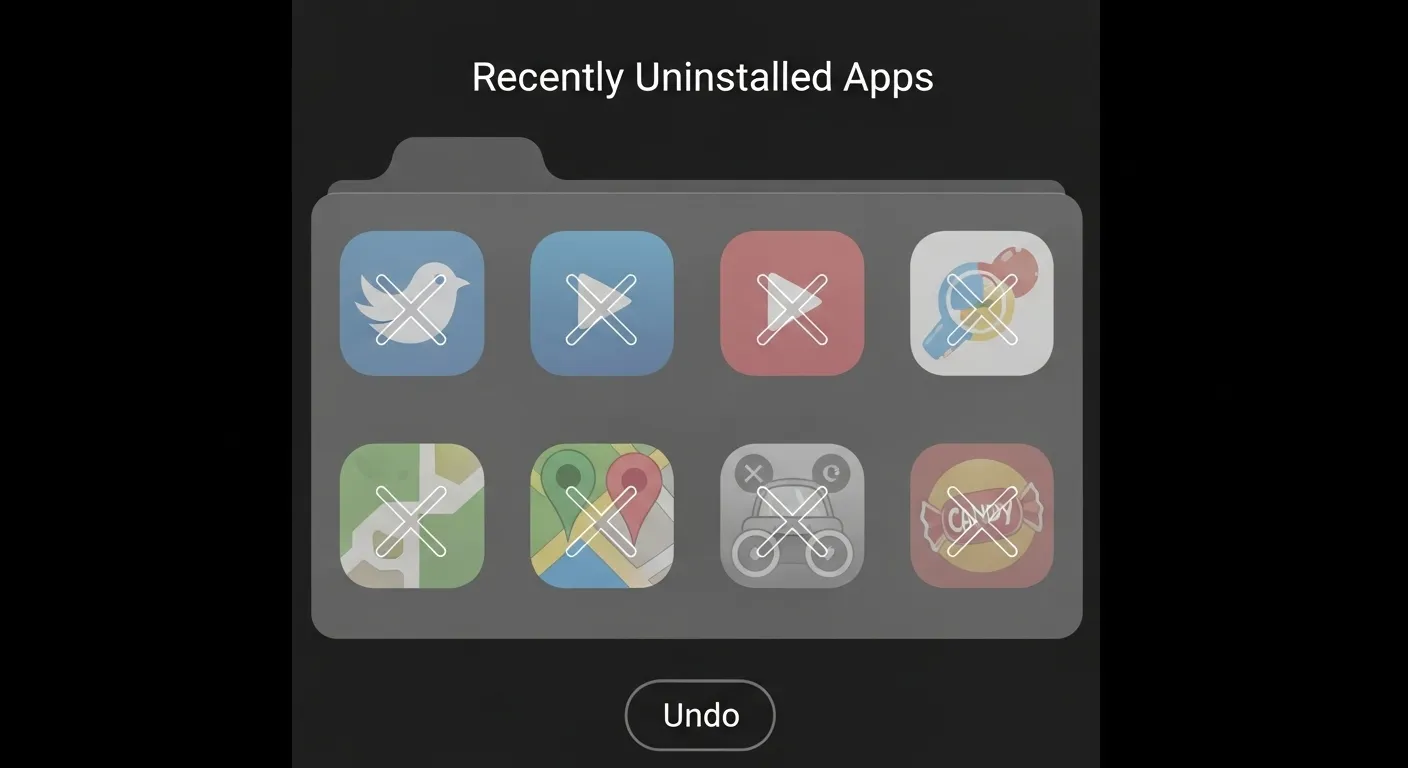
Have you ever deleted an app by mistake, or removed one thinking you’d never need it again—only to realize later that you actually do? On Android devices, these are often called recently uninstalled apps (or sometimes “deleted apps”). They’re simply the apps you downloaded in the past but are no longer installed on your phone or tablet. Thankfully, Android makes it possible to view app history and reinstall them without much trouble.
I remember once uninstalling a travel app right before a trip because I thought it was taking up too much storage. A week later, I needed the same app for booking tickets and was relieved to learn that the Google Play Store keeps a list of all apps you’ve ever downloaded. This saved me from hunting around trying to remember the app’s exact name. It showed me that recovering or reinstalling deleted apps doesn’t have to be stressful.
Users often want to recover these apps for different reasons—maybe to get back an old game, restore a tool they once relied on, or even re-enable a service app that was accidentally removed. While reinstalling the app is usually easy, getting your app data back depends on whether it was synced with your Google account or backed up to the cloud. Either way, knowing how to access your app recovery options can save you time, data, and frustration.
Can You See Recently Uninstalled (aka Deleted) Apps on Android?
If you’ve ever wondered whether you can check the apps you’ve uninstalled on your Android device, the answer is yes—but with some limits. The Google Play Store keeps a detailed record of every app you’ve downloaded using your account. This means even if you deleted an app weeks or months ago, you can still see it listed in your app history. I’ve personally used this feature a few times when I needed to reinstall an app I thought I would never use again—but suddenly needed for work or school.
It’s important to understand the difference between apps marked as “Not Installed” and those that are permanently gone. Apps in the “Not Installed” section are simply removed from your device, but Google still tracks them in your account. Permanently deleted apps, on the other hand, may no longer appear in your Play Store history if they’ve been removed from the Play Store itself or were linked to another account. Knowing this difference can save you time when you’re hunting for a specific app you’ve lost.
One thing I’ve noticed from experience is that this feature isn’t just useful for personal convenience—it’s also great for managing your device efficiently. By reviewing your uninstall history, you can see which apps you use rarely and which ones were removed because they caused performance issues. This insight can help you decide whether to reinstall certain apps or find better alternatives. For official guidance, Google outlines these steps clearly in their support page, which is a handy resource if you want to explore your app history securely.
How to View Recently Uninstalled Apps on Android
Method 1: Using Google Play Store
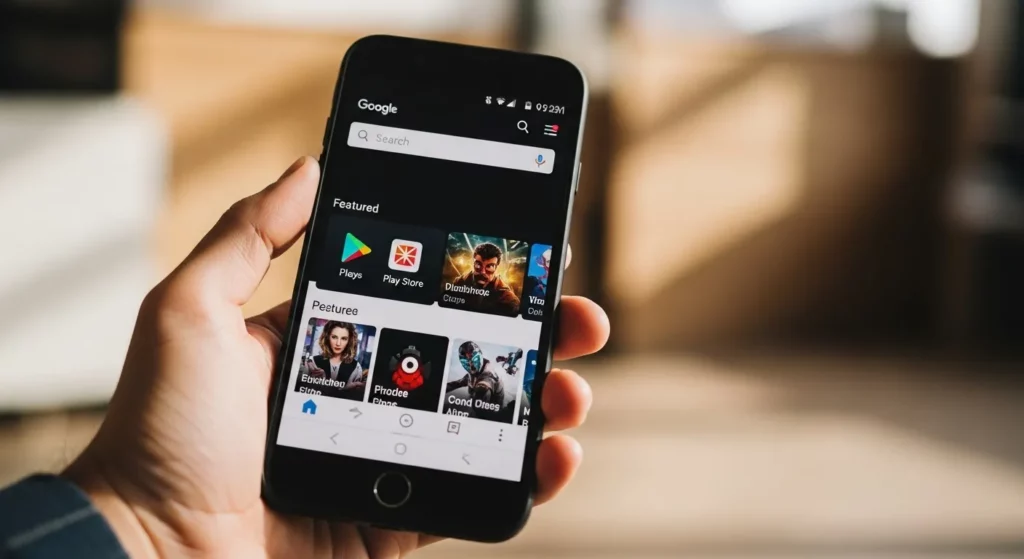
One of the easiest ways to see recently uninstalled apps is through the Google Play Store. Simply open the Play Store, tap your profile icon in the top-right corner, then go to Manage apps & device → Manage → Not Installed. This list shows every app you’ve downloaded before but isn’t currently on your device. I remember once I accidentally deleted a note-taking app I used for school projects, and this method helped me find it in seconds without digging through my phone.
You can also sort the apps by “Recently Added” to quickly see the newest uninstalled apps. This is especially useful if you uninstall apps often or want to reinstall something you just removed. The Play Store keeps a record tied to your Google account, so even if you switch devices, your app history is safe and easily accessible.
The beauty of this method is that it’s official, secure, and doesn’t require any third-party apps. You can trust the Google Play history to show only apps linked to your account, which avoids clutter and protects your data. This makes it a go-to option for anyone who wants a clean, reliable way to manage uninstalled apps.
Method 2: Using App Library / Device Settings
Some Android devices, like Samsung, HONOR, or Huawei, maintain a record of app usage in the device settings or App Library. On most phones, you can open Settings → Apps and look for recently uninstalled apps or app usage history. This can be handy if you’re trying to find apps that didn’t appear in your Play Store history, especially system apps or region-specific apps.
I’ve personally used this method on my Samsung Galaxy when I couldn’t find a small utility app in the Play Store because I had downloaded it using a different account. Browsing the Apps menu in Settings gave me a clear overview of what was installed, what was deleted, and even how much data each app had used before removal.
This method is slightly different from the Play Store because it focuses on your device records, not your Google account. It’s particularly helpful for phones with multiple users or when managing apps across several devices, giving you more control and context about each app’s history.
Method 3: Google Account Purchase History
For paid apps or apps with in-app purchases, your Google account purchase history is another reliable place to check. Open the Play Store, tap your profile, then go to Payments & subscriptions → Budget & order history. This will show every app you’ve ever purchased, even if it’s currently uninstalled, allowing a fast reinstall without paying again.
From my experience, this is the best method for recovering premium apps that I accidentally removed. Once, I bought a productivity app for work and removed it to save space, only to realize I needed it again. Checking the purchase history let me reinstall it immediately without searching or paying a second time.
This method not only helps recover apps but also protects your financial history, ensuring you can track which apps you’ve bought over time. It’s a secure, Google-backed way to manage your app library while avoiding unnecessary spending or downloads.
How to Reinstall Recently Uninstalled Apps

Reinstalling apps on Android is easier than most people think. All you need to do is open the Google Play Store, tap your profile icon, and go to Manage apps & device → Manage → Not Installed. From there, you’ll see a list of apps you’ve downloaded before but aren’t currently on your device. Simply tap the download icon next to the app, and it will start reinstalling immediately. I’ve done this countless times when switching phones, and it’s amazing how quickly everything comes back without losing your purchases.
If you’ve previously paid for an app, don’t worry—you won’t have to pay again. Google Play keeps track of all your purchases linked to your account, so restoring paid apps is completely free. This also works for apps with subscription-based features, as long as you log in with the same account. From personal experience, I’ve saved a lot of money by reinstalling premium apps this way instead of buying them again, which is especially handy for productivity tools and creative apps.
Another great thing is that many apps are synced across devices. This means if you reinstall an app on your tablet, your progress, settings, or saved files often come back automatically, provided the app supports cloud backup. For example, games I’ve uninstalled on my phone and then reinstalled on a new device usually pick up right where I left off. This makes reinstalling apps seamless and ensures you don’t have to start from scratch, which is a huge time-saver for both casual users and professionals.
Can You Recover Data from Recently Deleted Apps?
When you reinstall a recently deleted app, it’s important to know that the app itself will come back, but your data may not. I’ve personally reinstalled a few note-taking apps after accidentally deleting them, and I noticed that all my old notes were gone because they weren’t synced. Most apps only restore data if you’ve enabled cloud backup or signed into an account linked to the app. Without this, the app starts fresh, which can be frustrating if you relied on it for important information.
For apps that support cloud syncing, such as Google Drive, WhatsApp, or certain games, recovering data is much easier. If your app was linked to an account, simply logging back in often brings your data back instantly. In my experience, this has saved me multiple times — for instance, restoring chat history on WhatsApp after accidentally uninstalling the app was seamless because I had enabled Google Drive backup.
If cloud backup isn’t an option, third-party recovery tools can sometimes help, but they’re hit or miss. Programs like Tenorshare UltData for Android or iMobie PhoneRescue can scan your device for lost files, but success isn’t guaranteed and depends on how much new data has overwritten the deleted app’s storage. It’s always a good idea to regularly back up your important apps and data to prevent permanent loss. This way, even if you accidentally delete an app, you can recover both the app and the information inside it.
Recently Uninstalled Apps on Different Devices
Samsung
If you own a Samsung device, finding recently uninstalled apps is pretty straightforward. You can check your app history through both the Galaxy Store and the Google Play Store. In my experience, using the Play Store “Not Installed” filter is faster, but the Galaxy Store is handy if you originally downloaded an app from Samsung’s ecosystem. Simply open the Galaxy Store, tap your profile icon, and look for “My Apps” or “Installed Apps” to see what you removed. This method also shows system updates or apps that came pre-installed, which can save time if you’re looking for a specific tool.
Another tip from my own use: sometimes apps disappear from the Play Store listing if they’re no longer supported, but the Galaxy Store often keeps a record. This makes it a reliable second check, especially for Samsung-exclusive apps. Always make sure your device is signed in with your Samsung account to see the complete history.
By combining these two sources, you get a full view of your uninstalled apps and can quickly reinstall them. I’ve personally recovered a few productivity apps this way that I thought were lost forever, which was a lifesaver when I needed them for work.
HONOR / Huawei
For HONOR and Huawei devices, app recovery works a little differently because some apps are tied to the AppGallery rather than the Google Play Store. You can start by checking your AppGallery account under “My Apps” or “Library,” where it lists all downloaded and removed apps. According to HONOR’s official guidance, you can also use the Play Store on these devices to see apps you downloaded outside of AppGallery, which is great if you switch between sources.
From personal experience, the AppGallery interface makes it easy to filter apps by “Not Installed,” so you can quickly locate apps you deleted weeks ago. One time, I was able to recover a photo-editing app I had removed months back — and all of my cloud-synced settings were still intact. This shows that keeping your account logged in is key for seamless restoration.
If you rely on HONOR’s ecosystem, syncing your app history across your Huawei or HONOR devices ensures that no matter which device you switch to, you can always access your uninstalled apps. It’s a small step that saves a lot of time when managing multiple devices.
Other Android Devices
For most other Android devices, the process is simpler because the Google Play Store serves as the universal hub for app management. Open the Play Store, tap your profile icon, select “Manage apps & device,” then go to “Manage” and filter by “Not Installed.” This shows all apps you’ve downloaded but removed, and you can sort them by “Recently Added” to find the ones you uninstalled most recently.
In my experience, this method works reliably across brands like OnePlus, Motorola, and Pixel. One time, I was able to recover an important finance app after uninstalling it by accident, which made me appreciate how consistent the Play Store tracking is. Make sure you’re signed in with the same Google account used for downloading the apps, as otherwise the list might not show all previously installed apps.
The simplicity of this system means you don’t have to dig through device-specific stores or settings. For any Android user, knowing this trick ensures you can always reinstall your apps quickly, maintain your productivity, and avoid losing important tools or games.
Alternative Ways to Check Recently Deleted Apps
If you can’t find a deleted app in the Google Play Store, you can try third-party recovery apps. Tools like Tenorshare UltData for Android or iMobie PhoneRescue can scan your phone and sometimes find apps you removed. From my experience, these apps work best if you haven’t reset your phone or added a lot of new files since deleting the app. They are like a safety net for when you realize you need an app back.
These recovery tools can also help restore other files, like photos or contacts, not just apps. They work by checking your phone’s cache and backup to find deleted data. I once used one to recover an app I accidentally deleted, and it was fast and easy. It saved me from reinstalling the app and setting everything up again. Just make sure you download tools from official websites to keep your phone safe.
Remember, recovery success can depend on your phone model and Android version. Apps linked to Google accounts are usually easier to restore because some data is stored online. I always check the app’s official website before using it. This way, I know it’s safe and trustworthy, and I avoid risks like malware.
FAQs
Can I see permanently deleted apps?
If an app is permanently deleted, it usually doesn’t show up in your Google Play history. Google keeps track of apps you’ve downloaded, but very old apps or ones removed from the Play Store may not appear. I’ve had times when I needed an old app and had to rely on a backup or cloud account to find it. To avoid losing apps in the future, link them to your Google account or turn on automatic backups.
Can I recover deleted apps without Google Play?
It’s possible, but tricky. You can try third-party tools or APK files, but these can be unsafe. I once tried a recovery tool for a game I liked, but it didn’t work well, and I ended up reinstalling it through the Play Store. The safest way is to use official methods or check the app developer’s website for recovery options.
Does uninstalling delete all app data?
Most of the time, uninstalling removes the app’s local data. Some apps, like cloud-based apps or messaging apps, save your data online. I once lost game progress because it wasn’t backed up, so now I always check if the app saves data to the cloud before uninstalling.
Can I restore system apps?
System apps can’t be fully deleted, but you can disable them. If you disable one, you can turn it back on in Settings → Apps → Disabled apps. I’ve restored apps like Google Photos this way, and all my old data was still there. System apps work differently from normal apps, so you don’t need Google Play to bring them back.
Conclusion
The easiest way to see and reinstall recently deleted apps is in Google Play’s “Not Installed” section. From my experience, this is a lifesaver when you accidentally delete an app or switch devices. Reinstalling is easy, but recovering lost app data is not always possible unless the app uses cloud backup.
It’s smart to back up your apps and sync them to your Google account. Apps like WhatsApp and Google Drive save data automatically, so you don’t lose anything. Using these tools lets you manage your apps safely and avoid losing important information.
Even if apps are removed or replaced, using official recovery methods keeps your device safe. Personally, I’ve been able to restore both work apps and games without losing anything, which saves a lot of time and stress.