Phone Screen Flickering: 7 Easy Fixes You Must Try

Phone screen flickering is when your screen starts to flash, blink, or look shaky. Sometimes the brightness changes quickly, or parts of the display move in and out. It feels like the phone can’t keep the screen steady, which makes it hard to text, watch videos, or even scroll through apps. People often call this problem screen glitching or display flashing.
On both Android phones and iPhones, this can happen for a few reasons. Software issues like old apps, system bugs, or brightness settings can cause it. Hardware problems like a loose cable inside the phone, a weak battery, or damage from dropping the phone can also lead to mobile screen shaking. I remember my older phone started flickering right after an update, and simply turning off auto-brightness fixed it.
Fixing screen flickering early is very important. If you wait too long, a small glitch can turn into a big repair problem. It can also strain your eyes and make it harder to use your phone every day. I’ve seen people put off the problem, only to end up paying for a new screen when a quick setting change could have solved it. Acting fast saves you stress, money, and time.
Common Causes of Phone Screen Flickering
Software-Related Causes
Sometimes, the reason your phone screen flickers comes from the software. A small bug or glitch can make the screen flash or shake for a few seconds. I’ve seen this happen right after installing a new app. Restarting the phone often helps, but if the issue keeps coming back, it may be a bigger problem.
Old software or apps are another cause. When the system is not updated, it may not work well with the screen. On my iPhone, I once skipped updates for weeks, and the screen began flashing. After I updated the phone, the flicker stopped. This shows why updates are so important.
Third-party apps can also cause problems. Some apps don’t work smoothly with the phone, and this can make the screen flicker. On Android, you can use Safe Mode to check if an app is the problem. Also, auto-brightness can act up. The phone’s sensor may misread light, which makes the screen jump between bright and dim. Turning it off and setting brightness by hand often fixes it.
Hardware-Related Causes
Physical damage is one of the most common hardware reasons. Even if the screen looks fine after a drop, the inside parts may be hurt. I dropped my phone once on a hard floor, and later the screen started flashing at the edges. Cracks, bends, or pressure on the screen can all lead to flickering.
Another cause is a loose connector. The screen is linked to the phone’s board with small cables. If they become loose, the screen may blink or shake. This usually needs a technician to fix. Charging issues can also play a role. A weak or fake charger may not give steady power, which makes the screen unstable. Using a good-quality charger often solves this.
Water damage or overheating are also risky. If water gets inside, it can slowly damage the parts that control the display. Heat can do the same. I once left my phone in the sun too long, and the screen started blinking. After cooling it down, the issue went away.
Quick Fixes for Screen Flickering
Restart Your Phone
Restarting your phone is the fastest fix you can try. A quick reboot clears small errors that build up when the phone is running for a long time. It refreshes the system and can stop the screen from flashing. I’ve had my screen flicker many times, and most of the time, a restart fixed it right away.
Update Software and Apps
Old software can cause screen problems. Both Android and iPhone send updates to fix bugs and improve the screen. Go to your phone’s settings and check for updates. Also, make sure your apps from the Play Store or App Store are up to date. Once, I ignored updates for weeks, and my Android kept flickering—after updating, the problem was gone.
Adjust Display Settings
Your display settings may be the reason for the flicker. First, turn off auto-brightness (or adaptive brightness) and set the brightness yourself. If your phone lets you, lower the refresh rate to 60Hz. You can also try dark mode or eye comfort mode to see if it helps. Many people notice big changes after these small tweaks.
Boot into Safe Mode (Android)
Safe Mode can help find out if an app is causing the issue. In Safe Mode, only system apps run, and all other apps are turned off. If the flicker stops, you know a third-party app is the problem. To start Safe Mode, hold the power button, tap and hold “Power off,” and choose Safe Mode. I once found out a new game app was behind my flickering this way.
Disable Hardware Overlays (Android)
On Android, screen flickering can come from hardware overlays. These let the phone’s GPU manage the screen, but sometimes they cause problems. You can fix this by turning off “HW overlays” in Developer Options. When I tried this on my old Samsung, the screen became stable again. It’s a quick switch that can save you a lot of stress.
Clear System Cache (Android)
Bad cache files can also make the screen flicker. Clearing the system cache deletes temporary files but keeps your data safe. To do this, turn off your phone, hold the power and volume keys, and choose “Wipe cache partition.” I had this issue after a big update, and clearing the cache fixed it in minutes. It’s safe and often works right away.
Hardware Checks for Screen Flickering
Inspect for Physical Damage
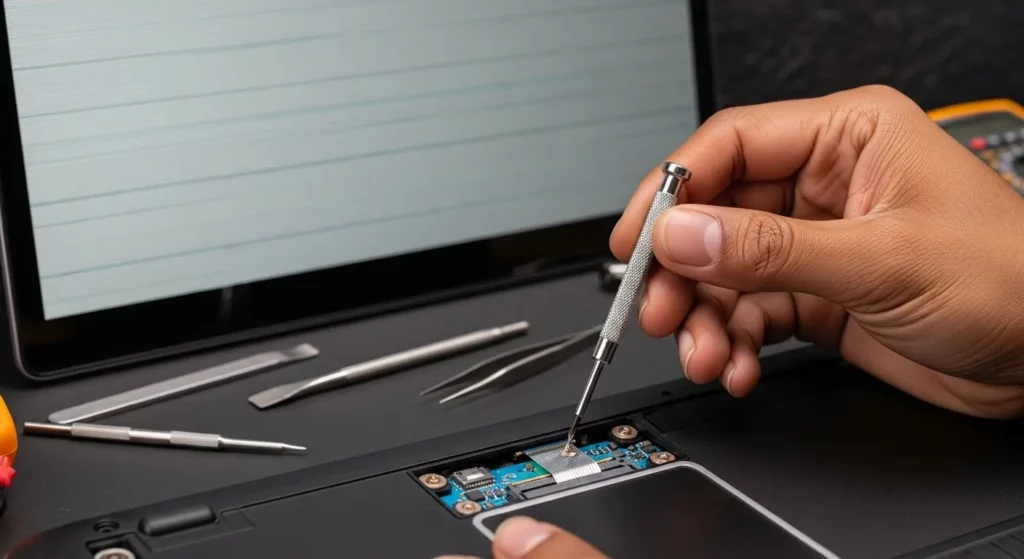
If your phone screen is flickering, first look for cracks, bends, or loose edges. Even a small crack can cause a broken LCD or screen damage that makes the display flash or shake. Sometimes the glass looks fine, but the screen inside is hurt from a drop or pressure.
I had this problem once after keeping my phone in my back pocket and sitting down. The screen didn’t break right away, but a faint line showed up and the flicker got worse every day. That tiny bend in the frame caused the display panel to loosen, and the only fix was getting the screen replaced.
Charging & Power Issues
Flickering can also happen when the phone is charging. This may be caused by a bad charging cable, a weak adapter, or an unstable power source. If your phone only flickers when plugged in, it usually means the power is not steady.
A friend of mine had this issue, and we found out the cheap charger he was using was the problem. After switching to the original cable and adapter, the screen worked perfectly. Always use a good-quality charger to avoid battery instability and display problems.
Water or Moisture Damage
Water is another big cause of screen flickering. Even a little liquid contact—like sweat, rain, or spilled drinks—can get inside the phone and cause the screen to flash or show strange colors. Signs of moisture damage include random flickers, ghost touches, or blurry spots.
This happened to me once when I splashed some water on my phone while cooking. The screen looked fine at first, but the next day it started flashing every few minutes. Drying it in rice didn’t fix it, and I had to replace the screen. If you think your phone has water damage, turn it off right away and get it checked before things get worse.
When to Seek Professional Help
If your phone screen still flickers after you try the easy fixes, it may be a sign of a bigger problem. This can happen if parts inside the phone are damaged or loose. I’ve seen phones where the flicker stayed even in Safe Mode, and it almost always meant the hardware needed repair. In these cases, it’s better to let a professional check it instead of trying to fix it yourself.
You should also get help if your phone has heavy damage, like a cracked screen, water inside, or if it was dropped hard. I once had a phone that worked fine after a small drop, but a week later the screen started flashing badly until it went black. Small damage can get worse over time, so it’s smart not to wait.
If your phone is still under warranty, go to the official service center—brands like Samsung and Apple may cover the repair. If the warranty is over, a trusted local phone repair shop can replace the screen or fix the problem. Just make sure they use good parts and offer a repair warranty. That way, you won’t deal with the same flickering problem again.
How to Prevent Screen Flickering in the Future
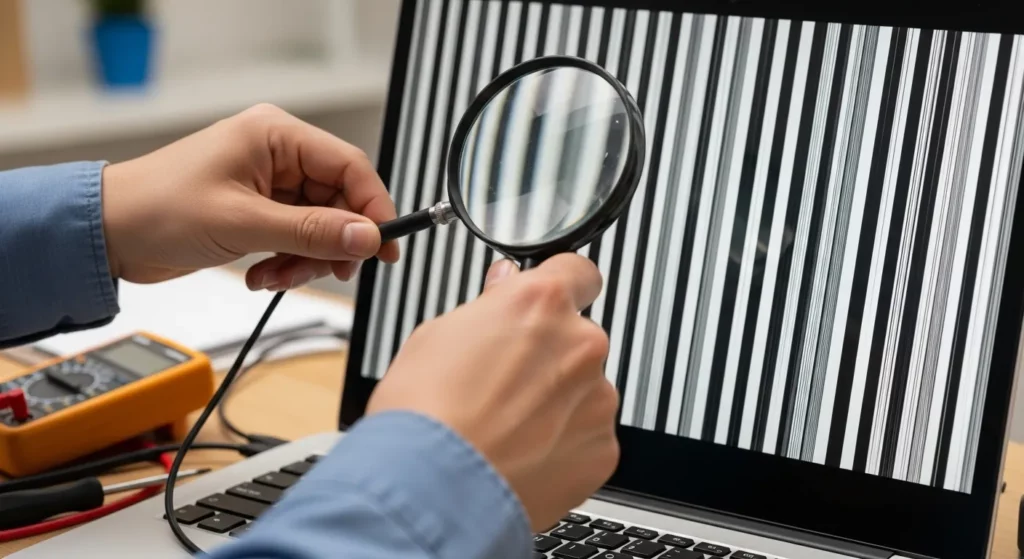
The best way to stop screen flickering is to take good care of your phone. Try not to drop it or press down too hard on the screen. Even a small crack can make the display shake or flash later. I once dropped my old Samsung, and the screen started flickering every time I charged it. Using a strong case and screen protector can help avoid this problem.
Always use good-quality chargers and cables. Cheap or fake chargers can send unstable power to your phone and make the screen glitch. I learned this when I used a low-cost cable on a trip, and my phone’s screen started flashing. After I switched back to the original charger, the issue stopped. Safe charging keeps both the screen and the battery healthy.
It’s also smart to keep your phone updated. Software updates often fix bugs that cause screen problems. Turn on automatic updates if your phone allows it. Try not to expose your device to too much heat, sunlight, or water. Just like a computer, your phone works best when it’s in safe, steady conditions.
FAQs
Why is my screen flickering suddenly?
It can happen because of a quick glitch, an app problem, or a loose part inside. Sometimes it shows up right after an update. Restarting your phone is a good first step.
Can screen flickering damage my phone permanently?
The flicker itself doesn’t usually break the phone, but the cause might. If it’s from hardware damage, leaving it alone can make the screen stop working over time.
Is it cheaper to repair or replace a flickering screen?
It depends. For old phones, a repair can cost more than the phone’s value. For newer ones, fixing the screen is usually cheaper than buying a new phone. Always check repair prices before deciding.
Does screen flickering mean I need a new phone?
Not always. Many times, you can fix it with updates or settings. But if nothing works, a repair shop can tell you if it’s better to fix the screen or get a new phone.
Conclusion
Phone screen flickering can come from software bugs, loose parts, or small accidents. Most problems can be fixed at home with updates, display settings, or better cables. Taking care of your phone and staying updated can stop many issues before they start.
If the flicker doesn’t go away, it’s best to get help from a repair shop. They can tell you if your phone needs a quick repair or a full screen change. Fixing it early saves money, time, and keeps your phone working longer.