Location Icon Always On Android – Causes & Fixes
What Does the Location Icon Mean on Android?
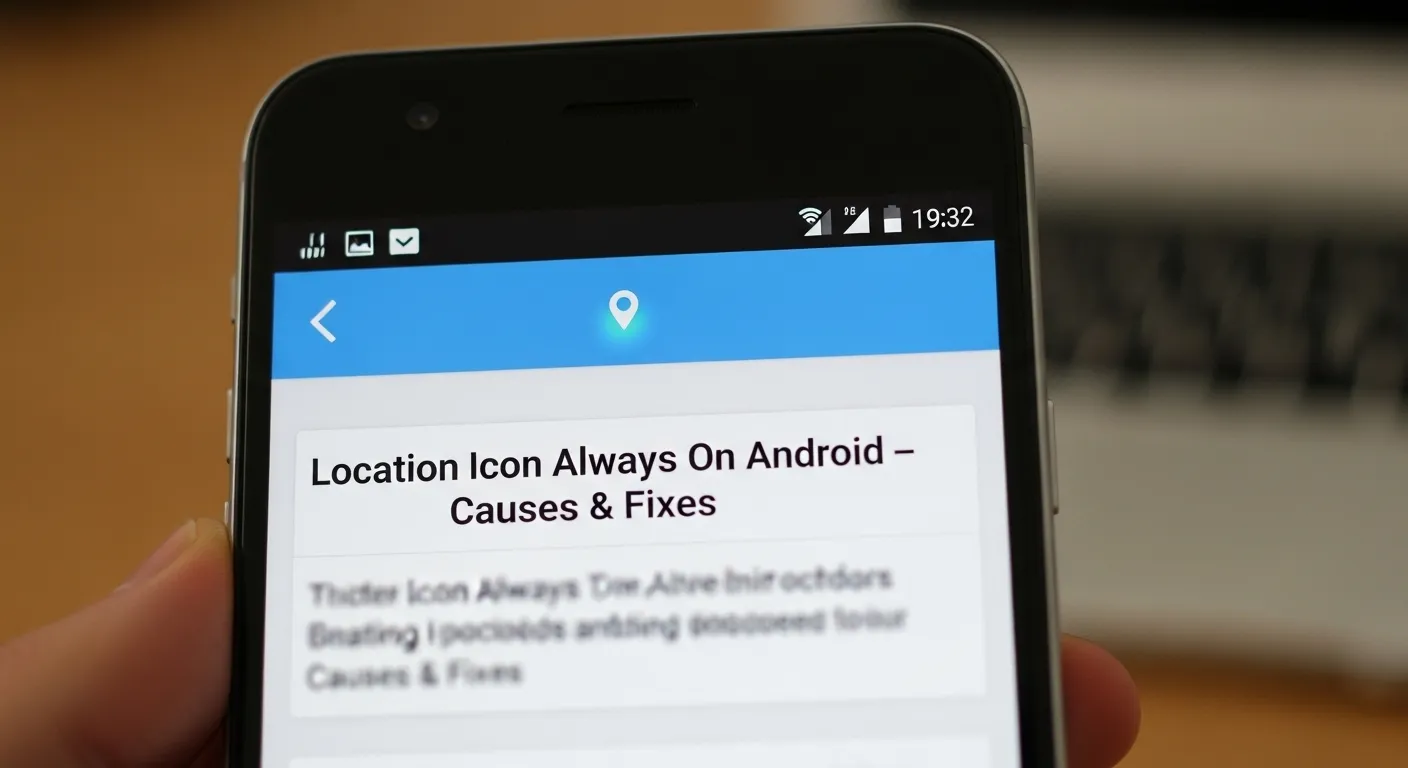
When you see the location pin icon at the top of your Android screen, it means your phone is using GPS or location services. In simple words, your phone is trying to figure out where you are. This might happen when you open Google Maps for directions, check the weather app, or even when a background service like Google Location Accuracy is running. The icon is part of the Android status bar and shows up any time your location is active.
I remember the first time I noticed it staying on. I thought, “Wait, is some app spying on me?” After looking in Settings > Location > App Permissions, I found out it was just my fitness app checking my steps and routes. Once I saw that, I felt better and learned how to control which apps could use my location.
The location symbol doesn’t always mean something bad. Many apps need it to work—like ride-hailing apps, food delivery, or even finding nearby Wi-Fi. The important thing is knowing why it’s there. If you want to check, Google has a helpful page on managing Android location settings that shows you how to stay in control.
Why Is the Location Icon Always On?
Background Apps Using Location
The most common reason is background apps. Some apps keep using GPS even when you are not using them. Weather, maps, ride apps, and even social media may check your location in the background.
I had this problem with a fitness app. It kept my GPS on all day, and my battery drained fast. Once I changed its setting to “Allow only while using the app”, the icon stopped showing all the time.
You can check this on your phone. Go to Settings > Location > App location permissions. Look for apps under “Allowed all the time” and change them if they don’t need it.
System Services Triggering Location
Sometimes it’s not apps but your phone’s own system. Features like Google Location Accuracy, Wi-Fi scanning, and Bluetooth scanning can trigger the icon. They help with better maps and connections but also make GPS run more often.
On my Pixel phone, the icon kept flashing even when no apps were open. I found out Wi-Fi scanning was on. Turning it off in Settings > Location > Location services fixed the problem.
If you don’t need all these features, you can switch them off. Google also has a help guide on location settings that explains each option.
Software Updates or Bugs
Sometimes the icon shows because of a bug after an update. Phones like Samsung and OnePlus have had this issue. After a big update, the system may think GPS is always on.
This happened to me on my Galaxy phone. Even after restarting, the icon stayed. I fixed it by clearing the Google Play Services cache, and the icon went away.
If this happens to you, check if there’s a new update for your phone. Phone makers often release quick patches to fix it.
Device-Specific Settings
Different phone brands have their own tools. On Samsung, you can use the Good Lock app with QuickStar to hide the location icon. On OnePlus, the launcher settings may keep location on in the background. Motorola and Pixel phones also have their own location features.
On my old Samsung, I was tired of seeing the icon all the time. I installed Good Lock and turned the icon off with QuickStar. I could still use GPS for maps without the icon showing.
Each brand is a little different, so it’s good to check your phone’s support site or forums. The fix may depend on who made your phone.
How to Check Which Apps Are Using Your Location
Using App Location Permissions in Settings
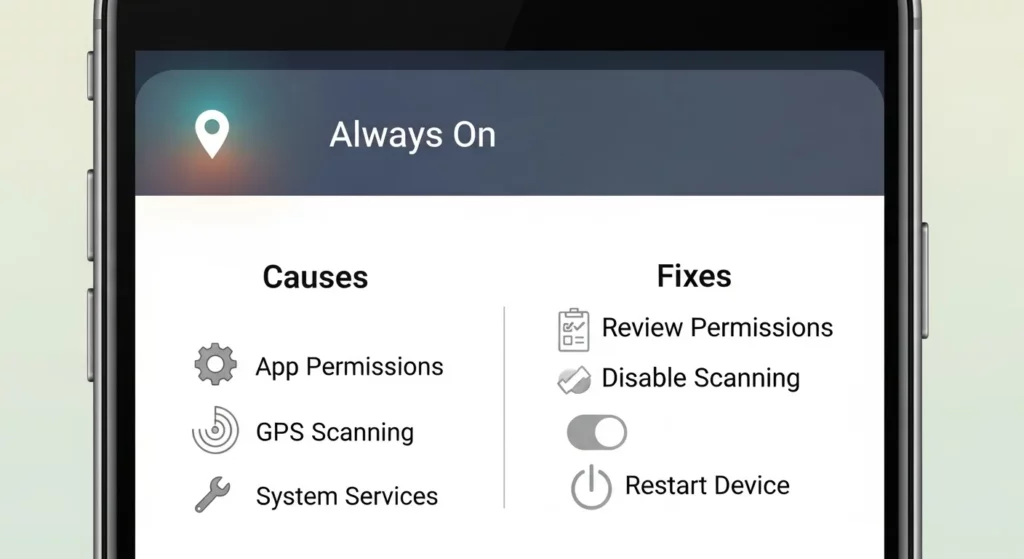
You can quickly see which apps use your location in your phone’s settings. Go to Settings > Location > App location permissions. Here you will find apps sorted into groups like Allowed all the time, Allowed only while in use, or Denied. This shows you which apps can track you even when you are not using them.
I’ve done this many times when my phone battery was running out too fast. Once, I found a shopping app set to Allowed all the time. I only used it once a week, so it didn’t need my location every day. Changing it to While in use fixed the problem and saved my battery.
If you are not sure which option to pick, choose While in use. This way, the app can only see your location when you open it. For more help, you can also check Google’s official guide.
Identifying High-Permission Apps
Some apps ask for more location access than they really need. A weather app may need your location to show the forecast. But a photo editor or flashlight app should not. Look at the list of apps that say Allowed all the time. These are often the ones keeping the location icon on.
From my own experience, social media and fitness apps are common culprits. I once found a fitness tracker pulling my GPS every hour, even when I was not exercising. It wasn’t harmful, but the location icon stayed on, and it bothered me. I changed its permission, and the icon stopped showing up.
Always be careful with apps you don’t trust. If an app seems suspicious, deny its location access. If you don’t use it, uninstall it. This protects your privacy and gives you more control over your phone.
Troubleshooting Steps to Fix the Always-On Location Icon

Restart Your Phone
Restarting your phone is the easiest fix. When a phone stays on too long, small bugs can build up. A restart clears them and gives your phone a fresh start. I had this problem once after using Google Maps all day, and the location icon went away as soon as I restarted.
Disable and Re-Enable Location Services
Turning location off and on again can refresh the system. This helps when the icon stays on even if no app is using it. On my Samsung, I noticed this after an update. I turned location off for two minutes, turned it back on, and the icon was gone.
Clear Cache and Data
Apps like Google Maps or Google Play Services store temporary files, called cache. If the cache gets messy, your phone may think GPS is still running. Clearing the cache usually fixes this without deleting the app. Once, after using Uber, my location icon was stuck. Clearing the cache for Google Play Services fixed it right away.
Update or Roll Back Software
Sometimes the issue is caused by a software update. A new Android or One UI update may have bugs that keep the icon on. Installing the latest security patch often fixes it. But if the problem started right after updating, rolling back to the older version can help. I saw this happen on my friend’s Galaxy phone, and it was fixed when the next patch came out.
Reset App Permissions
If nothing works, reset all app permissions. This makes every app ask again before using features like location. Many times, apps you don’t expect — like a weather or fitness app — use GPS in the background. When I did this on my dad’s Motorola, we found a wallpaper app was causing the icon to stay on. Resetting permissions stopped it.
Device-Specific Solutions
Samsung Phones – Use Good Lock & QuickStar
If you use a Samsung phone, the location icon can stay stuck on your screen. There is an easy fix. Samsung has a free app called Good Lock in the Galaxy Store. Inside that app, you can add a tool called QuickStar. QuickStar lets you hide the location icon from the top bar without turning off GPS.
I tried this on my Galaxy S22. At first, I worried it might shut off location, but it didn’t. My apps still worked fine, and the icon was gone. If you like a clean screen, this tool is worth using.
OnePlus & Motorola Fixes
On OnePlus phones, the problem often comes from the OnePlus Launcher or a system app called Scout. These apps may be set to use your location all the time. To fix this, go to Settings > Location > App Permissions. Find the app and change it from “Allow all the time” to “Allow only while using the app.”
For Motorola phones, the issue is often a setting called Google Location Accuracy. This feature uses Wi-Fi and Bluetooth to make location more exact. It can also keep the icon on. You can turn it off by going to Settings > Location > Advanced. I tested this on a Moto G, and the icon finally stopped showing all the time.
Google Pixel & Stock Android
On Google Pixel or other phones with stock Android, system tools often trigger the icon. Things like Find My Device or Location Accuracy can make it stay on. You can manage these under Settings > Location > Location Services.
When I used a Pixel 6, I found that turning off Wi-Fi scanning and Bluetooth scanning made a big difference. The icon stopped popping up so much. Apps like Google Maps still worked, but my status bar looked cleaner. You can also check Google’s own help page on location settings for more details.
Privacy and Security Considerations
When the location icon never turns off, it can be a privacy warning. Some apps may be tracking where you are, even when you don’t open them. This can happen with social apps, weather apps, or in rare cases, hidden spying apps. I had this happen once — the icon would not go away, and after checking my settings, I found an app running in the background with full location access. That taught me to check my permissions often.
To stay safe, open Settings > Location > App Permissions and review which apps have “Allow all the time” access. Only give this to apps you trust, like Google Maps or your ride-sharing app. If you don’t use an app much, change it to “Allow only while using.” Google also has official steps to manage app location permissions.
Battery Drain Issues
The location icon can also hurt your phone’s battery. GPS needs a lot of power, and if it’s running all day, your phone will die much faster. I once had my battery drop by half before lunch, and later found out a fitness app was using my location nonstop. After switching it to “only while in use,” my battery started lasting all day again.
You can check this on your phone by going to Settings > Battery Usage. If you see apps like Maps, Facebook, or food delivery high on the list, they may be using GPS too much. You can also turn off “Improve Location Accuracy,” which uses Wi-Fi and Bluetooth, to save extra power. For more tips, check Google’s guide on saving battery with location services.
FAQs (Frequently Asked Questions)
Why does the location symbol keep appearing?
The location symbol shows up when your phone is using GPS, Wi-Fi, or mobile data to find where you are. Sometimes it’s an app like Google Maps, and other times it’s your phone’s system, like weather or Google services. On my own phone, the icon stayed on because I had Wi-Fi scanning turned on. Once I switched that off in Settings > Location > Location services, the icon stopped showing all the time.
Can I remove the location icon without disabling location services?
Yes, on Samsung phones you can hide the icon by using the Good Lock app with the QuickStar tool. This way, your phone still uses location, but you won’t see the symbol in the top bar. On other Android phones, you can’t fully hide it, but you can control which apps get location access in Settings > Location > App location permissions. Personally, I keep the icon on because it reminds me when apps are running in the background.
Which apps use my location most often?
You can check this in your phone’s settings. Go to Location > App location permissions and look under “Allowed all the time.” Apps like weather, ride-sharing, maps, and social media usually use it most. I once found that my fitness app was using location all day, even when I wasn’t working out. Changing it to “Only while in use” fixed the problem and saved battery.
Does location always on mean I’m being tracked?
Not always. Most of the time, it means apps or system tools are checking your location for updates. Google, for example, uses it for maps and to suggest nearby places. If you’re worried, check your app permissions and review your Google Account Activity Controls (Google’s guide here). In my experience, it’s usually harmless, but it’s smart to stay aware and keep only the apps you trust.
Final Thoughts
The location icon staying on is usually caused by apps or system settings, not spying. By checking app permissions, clearing cache, and turning off extra services like Wi-Fi scanning, you can take control. I’ve fixed this on Samsung, Pixel, and OnePlus phones, and it usually only takes a few quick changes.
Think of the icon as a reminder to check your privacy. Managing Android location the right way means you still get GPS when you need it, without losing battery or control. Keep the apps you trust, limit the rest, and use the tools your phone already gives you to stay safe.