Fix Lag in Minecraft TLauncher: 5 Easy Ways for Smooth Play
Minecraft is a fun game, but it can lag a lot, especially on TLauncher. Lag happens for a few reasons. The game is not very well optimized, many players use it on low-end computers, and sometimes the settings are too high. Even if you have a decent PC, you can still get low FPS in Minecraft because the game runs on Java, which is not made for high performance. I remember when I set my render distance too high—my game froze for a few seconds, and I realized how much small settings can matter.
TLauncher is very popular because it is free and simple to use. But many people play it on laptops or older PCs, which makes TLauncher optimization important. If your computer doesn’t have enough RAM or isn’t using the right graphics card, the game can stutter, freeze, or feel delayed. When I first started, I had these same issues until I learned how to tweak settings, free up memory, and install mods that really helped me improve Minecraft performance.
In-Game Settings to Fix Lag
Lower Render Distance
Render distance controls how far you can see in the game. The higher it is, the more your computer has to load, which can make Minecraft lag. If you have a weak or low-end PC, set it to 6–8 chunks. For a mid-range PC, you can go up to 10–12 chunks and still play smooth. I remember when I lowered mine from 16 to 8 chunks on my old laptop — my FPS almost doubled, and the game felt much better.
Adjust Video Settings
Your video settings make a big difference in performance. Change Graphics to “Fast” instead of “Fancy.” Turn off smooth lighting, clouds, and extra animations. These things look nice but take up a lot of power. Even with a decent computer, I noticed smoother gameplay once I turned off smooth lighting. If you want more FPS, focus on speed over visuals.
Disable Heavy Features
Shaders and high-resolution packs look amazing but slow the game down a lot. For better FPS, stick with the default pack or use lightweight ones. You should also check V-Sync. It can stop screen tearing, but it often lowers FPS and causes input lag. When I turned V-Sync off, my combat got faster and the game felt more responsive.
TLauncher Settings & Launcher Optimization
Allocate More RAM
Minecraft needs enough memory (RAM) to run well. If the game lags, open TLauncher settings and look for the RAM slider. Move the slider to give Minecraft more memory. If your computer has 8 GB of RAM or more, giving the game 2–4 GB is usually best. Don’t set it too high, because that can make the game unstable.
When I first tried TLauncher, I gave Minecraft almost all my memory, and it made the game crash. Later, I set it to 3 GB and the game ran much smoother. It loaded faster, and the frame rate (FPS) stayed steady.
Install Performance Mods
Mods can boost your FPS a lot. To start, install the Fabric Loader and Fabric API. These are like tools that let other mods work. After that, add the Sodium mod. Sodium is very popular because it makes Minecraft render graphics faster, which means higher FPS.
When I added Sodium to my laptop, my game jumped from around 40 FPS to over 90 FPS. It felt like night and day. You can also try Lithium (speeds up game logic) and Phosphor (improves lighting). These work in the background, so you don’t have to change much. For safety, always download mods from trusted sites like CurseForge.
Use TLauncher’s Built-in FPS Boost Tools
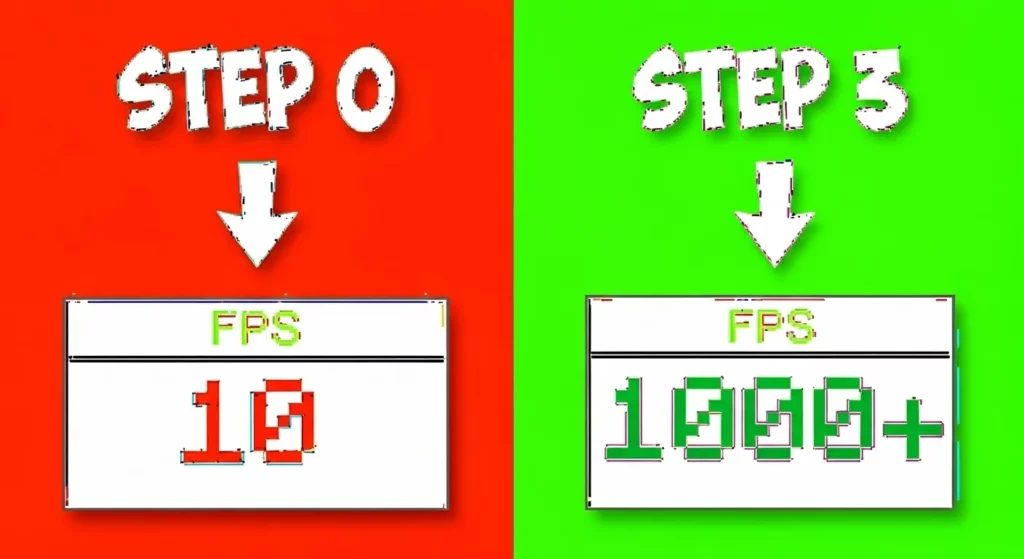
TLauncher also comes with its own FPS boost options. One of the best is the automatic GPU setting. This makes Minecraft use your dedicated graphics card (like NVIDIA or AMD) instead of the weaker built-in one. If you have a gaming laptop, this can make a huge difference.
TLauncher also has optimized presets that change video settings for smoother play. I tested the GPU option myself, and my FPS went from 55 to over 80 right away. It’s simple, fast, and doesn’t require installing any extra mods.
System & Driver Optimization
Close Background Applications
Minecraft needs memory and CPU power to run well. If you have apps like Chrome, Discord, or music players open, they use up those resources. Closing them gives Minecraft more space to work and helps reduce lag. I often check Task Manager to see what’s running and end programs I don’t need. Doing this can give you a quick FPS boost without changing any game settings.
Update OS and Drivers
Outdated drivers are one of the biggest causes of lag. Your graphics card (NVIDIA, AMD, or Intel) should always have the latest driver updates. I once updated my NVIDIA driver and saw fewer stutters right away—it was a huge difference. Windows updates can also improve stability and performance. You can get drivers safely from the official sites: NVIDIA, AMD, and Intel.
Prioritize Java in Task Manager
Minecraft runs on a program called Java. You can tell Windows to give it more attention by changing its priority. Open Task Manager, find javaw.exe, right-click, and set it to “High.” This makes Minecraft run smoother because it gets more CPU power. I used this trick when playing with Discord open, and the game stopped freezing as much. Just avoid “Realtime” since that can cause problems for your computer.
GPU Settings Check
If you have a laptop or PC with both integrated graphics and a graphics card, make sure Minecraft uses the graphics card. On NVIDIA, go to the Control Panel → Manage 3D Settings. On AMD, open Radeon Settings. I once found Minecraft was running on Intel graphics instead of my NVIDIA card, and after switching, my FPS almost doubled. This step is especially important for laptops because they often choose integrated graphics by default to save battery.
Server & Internet Fixes
Check Internet Stability
Lag in Minecraft isn’t always from your PC. Many times, it comes from your internet. If you play on Wi-Fi, the signal can drop or get blocked by walls. This causes your ping to go up and makes your game stutter. Using a wired connection with an Ethernet cable is a much better choice because it gives you steady internet. I switched to a cable setup once, and my ping dropped by almost half—it made fighting mobs and building much smoother.
You should also close apps that use the internet while you play. Streaming videos, downloading files, or even background updates can slow down your game. I noticed Minecraft ran much better when I paused downloads on my PC and phone. If you share Wi-Fi with family or friends, ask them to wait until you’re done gaming before starting big downloads.
Try Different Servers
Not all lag comes from your internet. Sometimes, the server you join is the problem. If too many people are on the server, it can’t handle the load. This is called server-side lag, and you can’t fix it yourself. On the other hand, if the issue is on your computer or internet, it’s called client-side lag. Knowing which one you have helps you fix the right problem.
I once joined a server that was hosted far away from my country. My ping was over 200ms, and every block took a second to break. When I switched to a closer server, my ping dropped under 50ms, and the game felt smooth again. If you want better multiplayer, look for servers hosted in your region. Many hosts like Aternos let you choose a server location before you join.
Extra Tips to Boost Minecraft Performance
Disable Unnecessary Features
Minecraft has some settings that don’t really help and can even cause lag. One example is controllers_improved_input_response. Turning this off can make your game feel smoother and reduce input delay. When I tried it myself, my character moved faster and the controls felt more natural. Small changes like this can make the game run a lot better without losing any fun.
Avoid Heavy Mods/Resource Packs
High-resolution resource packs and heavy mods can make Minecraft look amazing, but they also slow down your game. If your computer is not very strong, it’s better to use lightweight packs, like 16x textures, instead of 128x or 256x. I once installed a huge texture pack, and my FPS dropped so much that the game was almost unplayable. Switching back to a simple pack fixed the problem right away and made the game smooth again.
Reinstall Minecraft (if necessary)
Sometimes lag is caused by broken or missing files. If you have tried all other fixes and the game is still laggy, reinstalling Minecraft through TLauncher can help. I had to do this once when mods kept crashing my game, and a fresh install solved the issue completely. Just remember to back up your worlds before reinstalling so you don’t lose them.
Advanced Optimization (Optional)
Use OptiFine (with caution in TLauncher)
OptiFine is a mod that makes Minecraft run smoother and look nicer. It gives you extra video settings, better controls, and the option to use shaders. But in TLauncher, it can sometimes cause issues, especially if you also use other mods. If you only want more FPS, Sodium is usually the better choice because it is faster and lighter.
When I tested both, OptiFine helped me with zoom and small settings, but Sodium almost doubled my FPS on the same computer. I’d say OptiFine is best if you care about graphics and shaders. Sodium is better if you just want smoother gameplay.
Use Game Booster Software
Game booster apps can help free up memory and close programs you don’t need while gaming. Popular choices are Razer Cortex and MSI Afterburner. These tools won’t make a slow computer super powerful, but they can give you a few extra FPS and make the game feel smoother.
I used Razer Cortex on my old laptop, and it gave me around 5–10 more FPS in Minecraft. It was also nice because it shut down apps I didn’t even know were running. MSI Afterburner is more advanced — it lets you watch your computer’s temperature, GPU, and CPU while playing.
Advanced Optimization (Optional)
Use OptiFine (with caution in TLauncher)
OptiFine is a mod that makes Minecraft run smoother and look nicer. It gives you extra video settings, better controls, and the option to use shaders. But in TLauncher, it can sometimes cause issues, especially if you also use other mods. If you only want more FPS, Sodium is usually the better choice because it is faster and lighter.
When I tested both, OptiFine helped me with zoom and small settings, but Sodium almost doubled my FPS on the same computer. I’d say OptiFine is best if you care about graphics and shaders. Sodium is better if you just want smoother gameplay.
Use Game Booster Software
Game booster apps can help free up memory and close programs you don’t need while gaming. Popular choices are Razer Cortex and MSI Afterburner. These tools won’t make a slow computer super powerful, but they can give you a few extra FPS and make the game feel smoother.
I used Razer Cortex on my old laptop, and it gave me around 5–10 more FPS in Minecraft. It was also nice because it shut down apps I didn’t even know were running. MSI Afterburner is more advanced — it lets you watch your computer’s temperature, GPU, and CPU while playing.
Overclocking (Risky but Effective)
Overclocking means making your computer’s CPU or GPU run faster than normal. This can give you more FPS, but it also makes your computer hotter. If you push it too far, it can crash or even damage parts, so you must be careful. Always use a tool to check your temperatures, like HWMonitor.
I once tried a small GPU overclock on my desktop using MSI Afterburner. The FPS went up by about 15–20%, which felt amazing. But I also had a strong cooling system, so the heat stayed under control. I don’t suggest doing this on a laptop because they get hot very fast. On desktops with good fans, a small overclock can make Minecraft much smoother.
Overclocking (Risky but Effective)
Overclocking means making your computer’s CPU or GPU run faster than normal. This can give you more FPS, but it also makes your computer hotter. If you push it too far, it can crash or even damage parts, so you must be careful. Always use a tool to check your temperatures, like HWMonitor.
I once tried a small GPU overclock on my desktop using MSI Afterburner. The FPS went up by about 15–20%, which felt amazing. But I also had a strong cooling system, so the heat stayed under control. I don’t suggest doing this on a laptop because they get hot very fast. On desktops with good fans, a small overclock can make Minecraft much smoother.
Final Thoughts on Fixing Lag in TLauncher
The easiest way to make Minecraft run smoother is to change your video settings, give the game more RAM, and install a mod like Sodium. Lower your render distance, turn graphics to Fast, and shut off things like clouds or fancy lighting. These small changes can give you a big FPS boost. If your computer has 8 GB of memory or more, try giving Minecraft 3–4 GB in TLauncher. This helps the game run without slowing down your system.
From my own experience, Sodium made the biggest difference. Before using it, my FPS was all over the place. After installing it with Fabric, the game felt almost twice as smooth, and the world loaded faster. If you’re tired of lag and stuttering, I’d say Sodium should be the first mod you try. Just remember you’ll also need the Fabric API for it to work.
Not all lag is caused by the same thing. If your game runs slow even in single-player, that’s usually a hardware or FPS problem. But if you break a block on a server and it takes seconds to appear, that’s network lag. In that case, test your internet or try a different server. And if none of the fixes help, your computer may just be too old. Sometimes, the best solution is upgrading to a stronger CPU or graphics card for stable play.