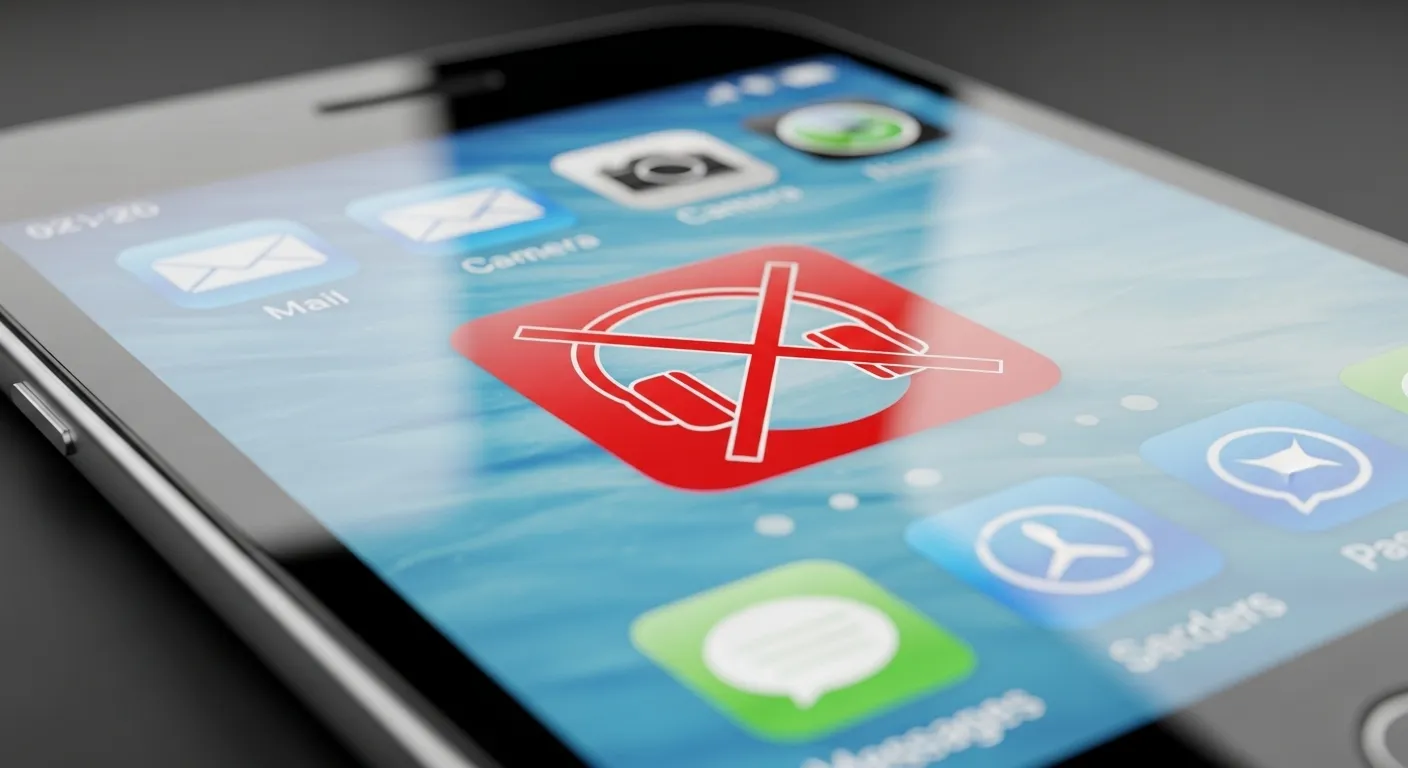
Have you ever seen the headphone icon on your phone even when no earphones are plugged in? Don’t worry — this happens to a lot of people. It means your phone still thinks headphones are connected, so sound doesn’t come out of the speaker. This small issue can stop you from hearing calls, music, or videos, and it can be pretty annoying.
From my own experience fixing phones, I’ve seen that this problem is often caused by simple things. Sometimes a little dust or lint gets stuck in the headphone jack. Other times, it’s just a small software glitch. I remember when my own phone got stuck in headphone mode after I unplugged my earphones — I restarted it, and the icon disappeared right away. That’s when I learned that easy fixes can really work.
There are a few reasons this might happen — like dirt in the port, Bluetooth confusion, moisture, or a hardware error. When your phone doesn’t notice that the headphones are gone, it keeps sending sound through the headphone channel. The good news? You don’t need to panic. There are safe and simple ways to fix this issue at home, and I’ll walk you through them next.
What Causes the Headphone Icon to Stay On?
If your phone still shows the headphone icon even after you’ve unplugged your earphones, don’t worry — this happens to many people. Your phone might be “confused” and think headphones are still connected. This can happen for a few simple reasons, like dust in the jack, water inside the port, or a small software problem. Let’s look at the most common causes so you can figure out what’s going on and fix it fast.
Software Glitches and System Bugs
Sometimes, your phone’s software makes a small mistake. When you unplug your headphones, the system should switch sound back to the speaker. But if there’s a bug or your phone freezes, it might stay in headphone mode. I’ve seen this happen after a big update or when an app crashes. Restarting your phone usually clears this up and resets everything. It’s like giving your phone a short nap so it can start fresh.
Dust or Debris Inside the Headphone Jack
Small pieces of dust or lint can fool your phone into thinking headphones are still plugged in. This happens a lot if you keep your phone in your pocket or bag. I once had my phone stuck in headphone mode for two days until I found lint in the jack! Cleaning the port gently with a toothpick, cotton swab, or compressed air can fix this right away. Even tiny bits of dirt can block the sensor inside the port.
Bluetooth or Audio Routing Conflicts
If you use Bluetooth earphones or speakers, your phone might still be trying to connect to them. Sometimes, Bluetooth doesn’t turn off properly, and your phone keeps sending sound to a device that’s no longer there. Turning Bluetooth off or removing old paired devices can fix this. I once had this happen with my wireless earbuds — the phone thought they were still connected even after I put them back in the case!
Moisture or Water Damage
A little moisture in the headphone jack can cause big trouble. It can make the phone think something is plugged in when it’s not. This can happen if your phone gets wet from rain or sweat, or even from humid air. If you think this is the problem, dry the port gently with a soft cloth or leave your phone in a dry, cool place for a few hours. Some phones, like Samsung or Huawei, will even show a message when water is detected — that’s a handy feature!
Hardware Issues with the Audio Port
If you’ve tried everything else and the headphone icon won’t go away, the problem might be with the hardware. The headphone jack could be damaged or worn out, especially if you drop your phone or use loose-fitting plugs. When this happens, your phone might always think headphones are connected. The best option is to take your phone to an authorized service center. A technician can check the audio port and replace it if needed.
Simple Fixes to Remove the Headphone Icon
 Restart Your Device
Restarting your phone is the easiest way to fix many small problems. When you restart, your phone refreshes its software and clears out small bugs that may make it think headphones are still plugged in. I’ve had this happen on my own phone, and a simple restart fixed it in seconds.
To do this, hold down the power button and tap Restart. If you only see Power Off, tap it, wait for 30 seconds, then turn the phone back on. If your phone has a removable battery, take it out for a minute before turning it back on. Restarting gives your phone a clean start and can often fix the stuck headphone icon.
Clean the Headphone Jack
Sometimes, tiny bits of dust or lint get stuck inside the headphone jack. This can make your phone think headphones are still connected. I’ve seen this happen many times, and cleaning the jack usually solves it right away. You can use a toothpick, a dry cotton swab, or a can of compressed air.
Turn off your phone first. Gently clean the jack with the toothpick or cotton swab to remove dirt or lint. If you use compressed air, give it a few short bursts. Be careful not to push too hard or use metal tools, as this can damage the inside of the port. Once clean, turn your phone back on and check if the headphone icon is gone.
Replug and Unplug Headphones Repeatedly
Plugging in and unplugging your headphones a few times can help reset the sound system. Each time you do this, your phone checks if headphones are really connected. I once helped a friend fix his phone this way when cleaning didn’t work, and it only took a minute.
Push the plug all the way in, twist it slightly, then pull it out. Repeat this three or four times. You might hear a small click — that’s the switch inside resetting. After doing this, try playing some music to see if sound comes from the speaker again. It’s quick, easy, and often works like magic.
Disconnect All Bluetooth Devices
Your phone may show the headphone icon if it’s still connected to a Bluetooth headset or speaker. This happened to me once after using my wireless earbuds — even when I put them away, my phone stayed connected.
Go to Bluetooth Settings and turn off Bluetooth for a few seconds. Then check if the icon disappears. You can also remove old devices by choosing Forget This Device to stop unwanted connections. Turning Bluetooth off helps your phone switch sound back to its speakers and often clears the headphone mode right away.
Advanced Troubleshooting Methods
Clear Cache Partition (Android Only)
Sometimes your phone just needs a little cleanup. The cache partition is where your phone keeps temporary files from apps and updates. Over time, these files can build up and cause small bugs — like your phone getting stuck in headphone mode. Clearing the cache does not delete your photos or data. It only removes junk files that may be confusing your system.
Here’s how to do it:
-
Turn off your phone.
-
Press and hold the Power and Volume Up buttons together until the Android logo shows.
-
Use the volume buttons to find “Wipe cache partition.”
-
Press the Power button to select it.
-
When it’s done, choose “Reboot system now.”
I’ve fixed a few phones this way, including a Samsung that kept showing the headphone icon. After clearing the cache, the sound came back right away. It’s a safe, simple fix that often works. (You can also see steps on Google’s Android Help).
Update System Software
Updating your phone’s software can fix sound bugs too. Every update includes small fixes for things like audio problems, headphone detection, or Bluetooth errors. Keeping your phone up to date helps it run smoother and prevents issues before they start.
To check for updates:
Go to Settings → System → Software Update → Check for updates.
If you see one, install it and restart your phone.
I once had an Infinix phone that stayed stuck in headphone mode until I installed a new update. After restarting, the speaker worked again. It’s an easy fix that keeps your firmware and audio drivers running correctly. You can also check your brand’s site (like Samsung Support or Huawei Support) for the newest update.
Use an Audio Control App
If cleaning or updating doesn’t help, you can use an audio control app. These apps let you choose where the sound goes — either to your speaker or headphones. Good ones include Earphone Mode Off, Headphones Mode Off, and Lesser AudioSwitch from the Google Play Store.
Once you install one, open it and select “Speaker.” It can force your phone to play sound through the speaker again. I’ve used “Lesser AudioSwitch” myself, and it fixed the problem in seconds — no restart needed.
Just make sure to download from official app stores for safety. These tools are helpful if your headphone jack is damaged or stuck. They give you control when your phone’s software can’t figure it out.
For Android Phones (Samsung, Infinix, Redmi, etc.)
If your Android phone, like Samsung, Infinix, or Redmi, shows the headphone icon even when no headphones are plugged in, don’t worry. This problem often happens because of dust in the headphone jack or a small software glitch. Try this: go to Settings → Sound and vibration → Sound output, and choose Speaker instead of Headphones. On some phones, you might find it under Connected devices → Audio output. When this happened on my old Redmi, I fixed it by plugging my headphones in and out a few times and gently cleaning the jack with a cotton swab.
For Infinix or TECNO phones, there’s a feature called Earphone Mode Off under Settings → Audio → Earphone Mode. You can also check the official Carlcare guide. If you use a Samsung, open the Samsung Members app and run a hardware test. If your phone got wet or dropped, let it dry for a few hours or blow cool air into the jack (never hot air). That often solves the issue.
For iPhones
If your iPhone shows the headphone symbol even when no earphones are connected, it’s usually because of water in the Lightning port or a small glitch. First, do a force restart. Press and quickly release the Volume Up, then Volume Down, and hold the Power button until you see the Apple logo. If the symbol stays, clean your Lightning port carefully with a wooden or plastic toothpick. Don’t use metal—Apple says it can damage the port (Apple Support).
This happened to me once after using my iPhone on a rainy day. I turned it off, left it overnight with a few silica gel packets nearby, and the next morning the icon was gone. You can also try updating your iOS or going to Settings → General → Reset → Reset All Settings to fix any sound bugs. Just remember to back up your data first.
For Other Devices (Tablets, Laptops)
Tablets and laptops can also get stuck in headphone mode. On Windows, right-click the sound icon, choose Sound Settings → Output, and pick Speakers. On Android tablets, go to Settings → Sound → Audio output. If the sound still doesn’t work, clean the headphone jack or adapter with a soft brush or compressed air. A bit of lint or dust can fool your device into thinking headphones are still connected.
I once fixed my friend’s laptop that had this problem—there was a small piece of cotton stuck inside the port from her earphones. After cleaning it out, the sound worked again. For USB-C adapters, make sure the pins aren’t bent and the cable fits snugly. Even a small loose connection can cause the system to stay in headphone mode.
When to Seek Professional Help
Sometimes, no matter what you try, that little headphone icon just won’t go away. When this happens, your phone may have a hardware problem inside the headphone port or sound chip. You might notice there’s no sound from the speaker or your phone acts like headphones are still plugged in. From my own experience fixing phones, this often means the headphone jack is broken or has water damage. At this point, it’s best to get help from a trained technician instead of trying to fix it yourself.
If restarting, cleaning, and using apps don’t work, take your phone to an authorized service center. Big brands like Samsung, Huawei, and Infinix have official repair shops with skilled experts. They use real parts and follow company rules to make sure your phone is safe. I always suggest avoiding small repair stalls that might make the problem worse. You can find your nearest official service center by visiting your phone brand’s website.
The repair cost depends on your phone model and how bad the damage is. Fixing a headphone jack is usually cheaper than replacing the motherboard. For most phones, repairs cost around $20 to $70, but premium phones can be higher. If your phone is still under warranty, you might even get the repair for free. Always ask for a repair quote first so you know what to expect before agreeing to the service.
Preventive Tips: How to Avoid Headphone Mode Problems
To stop headphone mode issues from happening again, keep your headphone jack clean. Dust and lint can build up inside and make your phone think headphones are plugged in. This happened to me once with my Infinix phone — a small piece of lint was stuck in the port! After cleaning it with a soft brush, the icon disappeared right away. You can also use a toothpick or a can of air, but be gentle so you don’t scratch the inside.
Moisture can also cause problems. Even a little sweat or water can confuse your phone’s sound system. Try not to use your phone with wet hands or in humid places. If your phone does get wet, turn it off right away and let it dry fully before using it again. Some phones are water-resistant, but it’s still smart to keep them dry when you can.
Lastly, use good-quality headphones and cables. Cheap or broken ones can bend or damage the inside of your phone’s port. Keep your software updated and clear your phone’s cache once in a while to keep it running smoothly. These small habits can save you from sound problems and keep your phone’s speakers and audio system working perfectly for a long time.
Related Resources and Video Tutorials
If you like learning by watching, there are some great videos that can help you fix the headphone icon problem. One of the best ones is by Anh Phan on YouTube — he shows how to clean the headphone jack safely and clearly. Another good one is from Headphonesty, where they walk you through easy steps to get your phone out of headphone mode. These short videos are helpful if you’re not sure how to clean the port or what settings to check.
You can also read guides from trusted blogs like Carlcare, Headphonesty, and iSumsoft. When my own phone got stuck in headphone mode, I followed Carlcare’s step-by-step guide, and it worked fast. Headphonesty’s article also explains why the headphone icon gets stuck, which helped me understand the cause, not just the fix. It’s always best to follow trusted sites like these because their methods are tested and safe for your phone.
To find the right video for your device, try searching YouTube with terms like “how to remove headphone mode video,” “Android headphone symbol fix tutorial,” or “earphone mode off guide.” Look for videos with good comments and lots of likes — that usually means people found them helpful. With these resources, you can easily follow along and get your phone’s sound working again.
Conclusion
A stuck headphone icon can be annoying, but don’t worry — it’s often easy to fix. From my own experience, a simple restart or cleaning the headphone jack usually does the trick. You can also try apps like Earphone Mode Off or Lesser AudioSwitch to send the sound back to your speaker if it’s a software glitch.
If these steps don’t help, the problem might be with your phone’s hardware. In that case, it’s best to visit an authorized service center to have it checked safely. Keeping your phone dry and cleaning the jack now and then can stop this problem from happening again. Once it’s fixed, your speaker will work normally, your music will play out loud again, and that little headphone icon will finally be gone.