How to Find .APK Files on Android

Have you ever wondered where Android apps come from before you hit “Install”? They come as APK files. APK stands for Android Package Kit. It is like a package that carries everything an app needs—its code, pictures, and other resources—so your phone can run it. Knowing about APK files can help you manage your apps better and even explore them safely.
People look for APK files for a few common reasons. Some want to backup their apps in case they reset their phone or get a new device. Others want to share an app with friends who might not have fast internet or can’t access the Play Store. I have used APK backups myself when traveling, so I could reinstall apps without needing Wi-Fi—it was really handy. APKs are also useful if you want to check an app for compatibility or security before installing it.
Finding APK files isn’t only for tech experts. Once you know where they are, you can manage, share, or explore your apps easily. It gives you more control over your device instead of just letting apps sit quietly in the background. Plus, it’s kind of fun to see how apps are built and stored!
Understanding APK Files on Android
What is an APK File?
An APK file is basically the package that Android uses to install apps on your device. Think of it like a box that holds everything an app needs—code, images, resources, and instructions—to work properly. Every time you download an app from the Google Play Store or another source, you’re actually getting an APK file behind the scenes.
From my experience, exploring APK files can be quite eye-opening. For example, opening an APK (using tools like APK Analyzer) shows you how developers organize resources, icons, and app logic. It’s a neat way to understand what makes an app tick. APKs follow a standard structure, which includes folders like res for resources, lib for code libraries, and AndroidManifest.xml that tells Android how to install and run the app. This structure is what allows Android to set up apps correctly and securely.
In short, APK stands for Android Package Kit, and it’s the lifeblood of app installation. Without APKs, installing apps on Android would be impossible. They’re the exact files that carry all the building blocks your apps need to run smoothly.
Where Are APKs Stored?
APK files live in different places depending on the type of app. User-installed apps—like the ones you download from the Play Store—are usually stored in the /data/app folder. Accessing this folder often requires a rooted device because Android protects it for security reasons. On the other hand, system apps that come pre-installed on your phone are located in /system/app or /system/priv-app. These are usually locked down to prevent accidental deletion or tampering.
In my experience, I’ve often needed to access APKs for backup purposes or to share an app with a friend. Using tools like ES File Explorer or a root-enabled file manager made it surprisingly straightforward, though I always recommend caution. Knowing the difference between system and user APKs is important because copying or deleting system APKs can break your phone. Understanding these storage locations gives you more control over your apps and can help with things like manual backups, troubleshooting, or analyzing app behavior.
APK storage is not random—it’s organized to balance accessibility and security. System apps are protected, user apps are easier to reach, and everything is structured in a way that Android knows exactly where to find what it needs to run your apps efficiently. By understanding this, you can manage APKs more safely and make informed decisions when exploring your device.
Using a File Manager to Find APKs
Open Your File Manager
The first step to finding APK files is opening a file manager app on your phone. Most Android phones have one built-in, like Files by Google or Samsung My Files. These apps make it easy to see what is on your phone and where things are stored. I like using Files by Google because it keeps files organized and shows downloads, images, and APKs in separate sections. Using a file manager is safe and gives you control over your phone’s storage.
Search for APK Files
After opening your file manager, use the search bar to look for .apk files. Just type .apk and your phone will show all APK files in storage. Usually, APKs are in the Downloads folder, but some phones use a special APK folder. In my experience, old APKs can also hide in folders named “Installers” or “Apps,” so it’s worth checking carefully. Searching this way is much faster than scrolling through every file.
Accessing Hidden APK Files
Some APK files are hidden, especially system files or files from other sources. To see them, turn on “Show hidden files” in your file manager settings. For example, in Files by Google, go to Settings > Advanced > Show hidden files. I once found an old APK I thought was lost just by turning on hidden files. This option is helpful because without it, you could miss important APKs that are hidden from normal view.
Finding APK Files on Rooted Devices
What is Rooting and Why It Matters
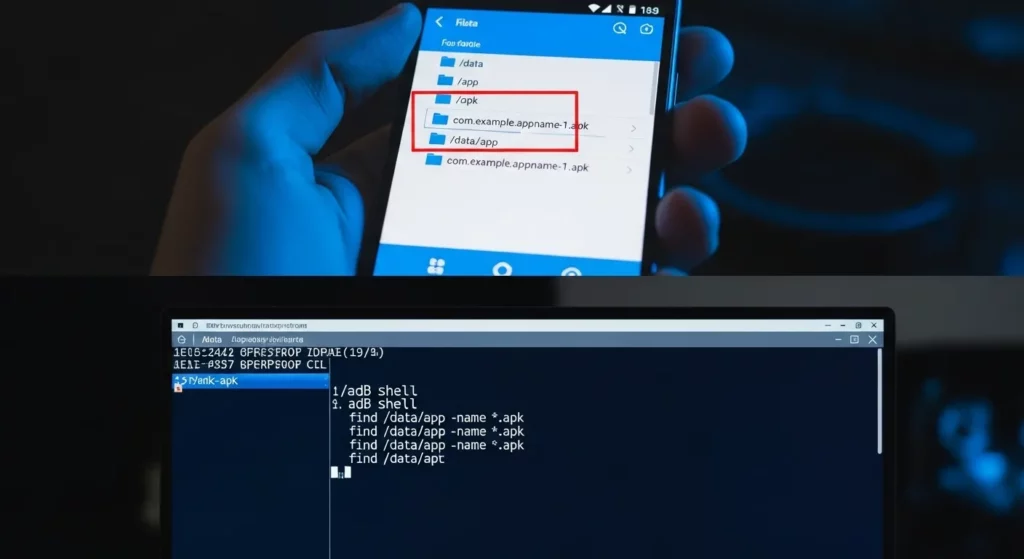
Rooting is like getting “admin access” on your Android phone. Normally, some files and folders are hidden to keep your phone safe. When your phone is rooted, you can see these hidden areas, like the /data/app folder where apps you installed are stored. I remember rooting my first phone—it felt like opening a secret toolbox. Suddenly, I could see files I never knew existed and even back up apps myself.
Root access is needed because many APK files, especially system apps, are stored in places normal users can’t reach. Without root, finding them is very hard. Rooting must be done carefully. Trusted tools like Magisk or SuperSU are commonly used to give safe root access.
Using Root Explorer or ES File Explorer
After rooting, you need a file manager that works with root permissions. Apps like Root Explorer or ES File Explorer can go to /data/app and show APK files for your installed apps. I prefer Root Explorer because it is stable and rarely crashes when opening tricky folders.
In /data/app, each app has its own folder. Here you can see the APK file and some other files for the app. This is useful if you want to back up apps, share them, or check them for problems. Always be careful when touching these files, because changing the wrong one can break the app or your phone.
Extracting System App APKs
System apps are in /system/app. These are apps that come with your phone, like the camera or messaging app. With root access, you can copy these APK files to another folder, like your downloads or SD card. I’ve done this many times—it’s as simple as long-pressing the APK in Root Explorer and selecting “Copy” or “Move.”
Copying system APKs is useful if you want to reinstall an app after a reset or try a custom version. But you should only do this for personal use. System apps often have proprietary code, so sharing them can be risky. Tools like Root Explorer make it clear which apps are system apps and which are user-installed.
Alternative Methods Without Root
Third-Party Apps to Find APKs
Even if your phone isn’t rooted, you can still get APK files using apps from the Google Play Store. Apps like MyAppSharer, APK Extractor, and APK Manager help you find, copy, and share APK files from apps on your phone. I’ve used MyAppSharer when I switched phones, and it made backing up my apps really easy.
These apps look through all the apps you have installed and make a copy of the APK in a folder you can access. Some apps even let you send APKs through email, Bluetooth, or cloud storage. I like APK Extractor because it’s simple, fast, and never crashes.
Using these apps is safer than trying to dig into system folders. They don’t need root access, so you don’t risk breaking your phone. You can check the official pages here: MyAppSharer and APK Extractor.
F-Droid Cache Method
If you use F-Droid, an open-source app store, you can get APK files without rooting your phone. F-Droid keeps downloaded APKs in this folder:/storage/emulated/0/Android/data/org.fdroid.droid/cache/
Just open it with a file manager, and you’ll find the APKs ready to copy or share. I’ve used this method for testing apps, and it’s very easy because the files are organized.
To use an APK, you can copy it to another folder, email it, or upload it to cloud storage. This way is also safer because F-Droid apps are open-source and less likely to have viruses. It’s much better than downloading APKs from unknown websites. Learn more on the official F-Droid site.
Downloaded APKs from Browsers or Other Sources
Finding APKs in the Download Folder
When you download an APK from a browser, it usually goes to your device’s Download folder. To find it, open your Files app or any file manager, and look for the folder named Downloads. Most browsers, like Chrome or Firefox, also have a “Downloads” section where you can see your recently downloaded files. One tip I’ve learned: some APKs have strange names, so typing “.apk” in the search bar helps you find them quickly. This makes it easier to install or share the app later.
APK files in the downloads are usually ready to install, but you should only install from trusted sources. I usually use sites like APKMirror or F-Droid because they check the apps for safety. This keeps your device safe and avoids malware. Even small habits like this can save you big problems.
Managing Multiple APK Sources
If you download APKs from many sources, your files can get messy fast. I’ve seen devices with dozens of APKs, some are duplicates or partially downloaded, which can cause errors. To keep things organized, make separate folders for each source—like one for browser downloads, another for F-Droid apps, and a third for shared APKs. This makes it easier to find the file you need.
Another tip is to rename APK files with the app name and version number. For example, instead of “app123.apk,” call it “Spotify_1.2.3.apk.” This stops duplicates and helps you know which version you have. Keeping your APKs organized saves time and avoids frustration. It may seem small, but it really helps when you work with Android APKs often.
Avoiding Malicious APKs
Downloading APK files can be risky because some files may contain harmful software. From my experience, even apps that look real can be unsafe. That’s why I only use trusted sites like APKMirror or F-Droid. These sites check the apps before sharing them, so they are much safer. You should avoid random websites or links from unknown sources because they can steal your information or harm your device.
It also helps to check the app’s reputation before downloading. Look at user reviews, the number of downloads, and the developer’s information. If the file size is weird or the version number seems too new, it could be fake. Following these tips keeps your phone safe and makes sure your apps work properly.
Checking APK Integrity
After downloading an APK, it’s smart to make sure it hasn’t been changed. One way is to check the file size. If it is much bigger or smaller than the official version, it could be unsafe. Another way is to check the checksum or hash of the file. This is like a digital fingerprint that proves the file is real. Apps like Hash Droid or online tools make this easy.
I learned this the hard way. I once installed an APK without checking it, and my phone started showing weird pop-ups. Since then, I always verify every APK. This simple step can protect your personal information and prevent your phone from getting malware. It only takes a minute but keeps your device much safer.
FAQs
Where are APK files stored on Android?
APK files are stored in different places depending on how you got the app. If you downloaded it from the internet, check the Downloads folder or a folder named APK. Apps from the Play Store are in /data/app/, but you need root access to see this. System apps are in /system/app/, which is hidden. In my experience, using a file manager like Files by Google makes finding APKs much easier without touching system folders.
Can I access APKs without rooting?
Yes! You don’t always need to root your phone. Apps like MyAppSharer or APK Extractor can save APKs of installed apps to your storage. Even F-Droid stores APKs in its cache folder, which you can access without root. I’ve used this method to back up apps before resetting my phone, and it’s quick and safe.
How do I share an APK from my device?
After finding the APK with a file manager or extractor app, you can share it through email, cloud storage, or messaging apps. I usually use Google Drive to send APKs because it keeps the file safe and avoids corruption. Apps like MyAppSharer let you share APKs directly via social apps or Bluetooth. Always share APKs from trusted apps to stay safe from malware.
Conclusion
Finding APK files on Android is easier than it seems. Most people can use a file manager or APK extractor without rooting their device. I personally use Files by Google and MyAppSharer because it saves time and avoids messing with hidden folders.
Safety is important when dealing with APKs. Only download APKs from trusted sources like APKMirror or F-Droid. From my experience, these sources are reliable and keep your phone safe from viruses.
Organizing APK files helps a lot. Make a dedicated folder, name the files clearly, and back them up often. Doing this has saved me time and stopped me from losing apps accidentally.