Remove Synced Contacts on Android: 7 Easy Fixes You’ll Love
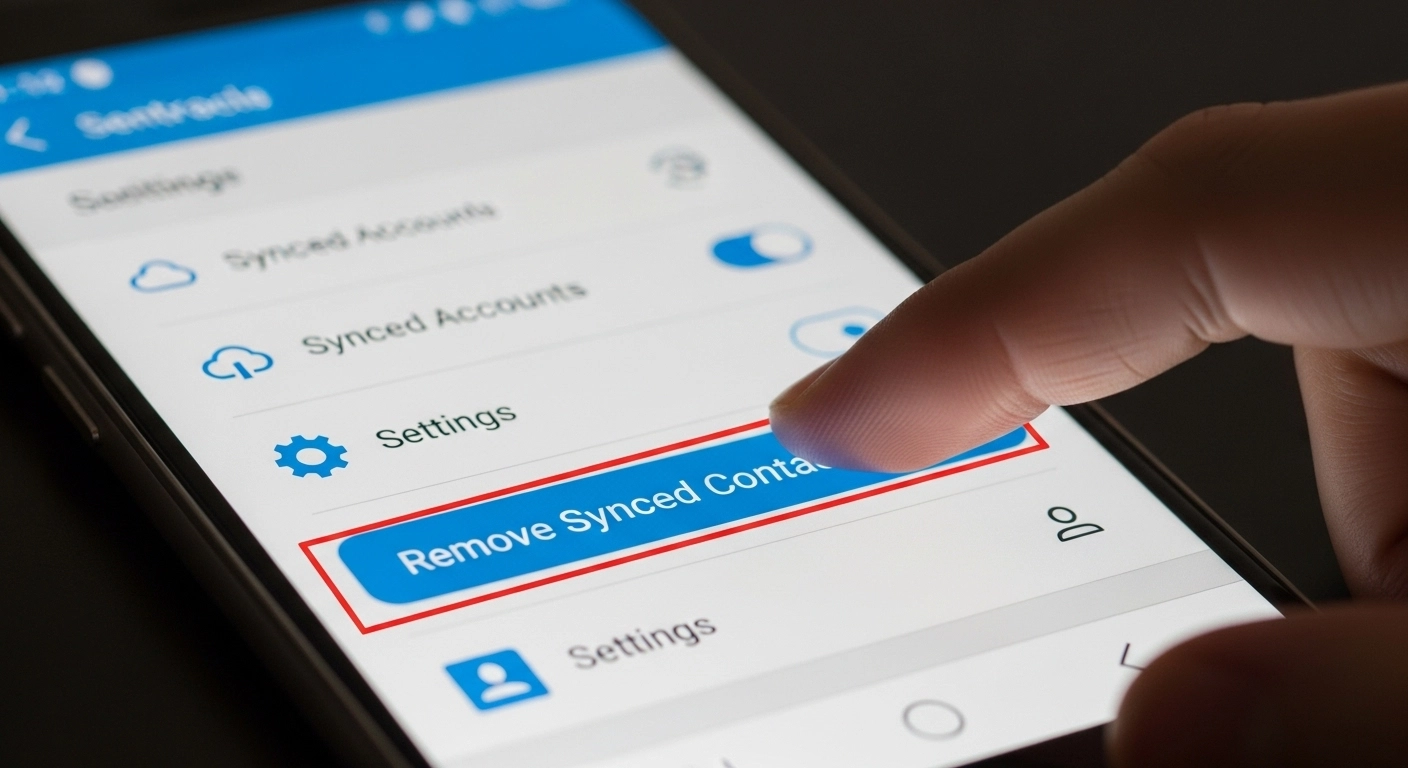
When you sign in to your Android phone with a Google account, you might notice contacts showing up that you never saved yourself. These are called synced contacts. They come from accounts like Google, Gmail, Exchange, or even apps such as WhatsApp and Facebook. Instead of being saved only on your phone, these contacts are stored in the cloud and copied to your device.
This can be helpful, but it often causes problems. You may see duplicate contacts, numbers you don’t need anymore, or even old emails turning into phone contacts. I remember when I added my work Gmail to my personal phone—suddenly I had hundreds of names from the office in my contacts. It was messy and confusing, and I didn’t want all those numbers mixed in with my personal ones.
That’s why many people want to Remove Synced Contacts on Android. Some do it for privacy, others to keep their phone clean and simple. If you know how to manage sync settings for Google, Gmail, Exchange, and other accounts, you can avoid clutter and keep your contacts list neat.
Understanding Synced Contacts on Android
What Are Synced Contacts?
Synced contacts are names and numbers that come from your online accounts, not just your phone. For example, if you save a contact to your Google account, it gets stored online in the cloud. Later, when you sign in with the same account on another phone, those contacts show up right away. This is different from phone contacts, which stay only on your device or SIM card.
You can get synced contacts from accounts like Google, Gmail, Exchange, WhatsApp, and Facebook. These apps are made to share data across devices. I remember when I signed into Gmail on a new phone, I suddenly had hundreds of old numbers appear. Some were useful, but many were outdated, and it made my contact list very messy.
Why Do Contacts Get Synced Automatically?
Contacts sync because Android is built to keep your info the same on all your devices. When you log in with a Google account, your phone will copy data like emails, calendars, and contacts. Unless you turn this off, the sync happens in the background without asking.
Google backup and sync is often on by default. This means if you delete a contact from your phone, it may come back after syncing again. I once deleted the same contact three times before I learned that sync was still active. The only way to stop this is to change the sync settings, not just delete contacts.
How to Remove Synced Contacts on Android
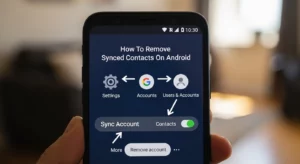
Step 1: Disable Contact Syncing
The first step is to stop new contacts from syncing. On your Android phone, open Settings > Accounts. Choose the account you want to change, like Google, Exchange, or even WhatsApp if it’s syncing contacts. Then tap on Sync Account and turn off the toggle for Contacts.
Once this is off, your phone will no longer pull contacts from that account. I learned this the hard way when I kept deleting numbers only to see them come back the next day. Turning off sync fixed the problem immediately and saved me a lot of time.
Step 2: Delete Already Synced Contacts
Disabling sync stops future syncing, but it doesn’t remove contacts already on your phone. To clear those, open the Contacts app. From the menu, you can filter by account, such as Gmail or Exchange, to see only those contacts. Select the ones you don’t want and tap Delete.
This step is useful if you only want to remove some contacts instead of all of them. For example, I once removed just my work email contacts but kept my Gmail contacts. It made my phonebook much easier to manage without losing the numbers I actually needed.
Step 3: Clear Contact Storage (Advanced Option)
If your phone is filled with unwanted numbers and you want a clean slate, you can clear all contact data at once. Go to Settings > Apps > Contacts Storage. Then tap Clear Data. This will delete every saved and synced contact on your device.
This method is very powerful but also risky if you haven’t backed up your important numbers. I used it once after syncing the wrong account by mistake, and my contacts list went from thousands to zero in seconds. Luckily, I had my main contacts backed up in G
Special Cases for Removing Synced Contacts
Removing Google Contacts
If most of your contacts are from Google or Gmail, the best way to manage them is through Google Contacts on a web browser. Once you sign in, you’ll see all the numbers and emails linked to your account. From there, you can select unwanted entries and delete them permanently. This ensures they don’t reappear the next time your phone syncs.
I once had dozens of duplicate contacts because Google saved both my phone entries and my email ones. Cleaning them up directly in Google Contacts made everything easier, and the changes showed up on my phone within minutes.
Removing Exchange/Work Email Contacts
Work accounts, especially those linked to Exchange or Outlook, often bring in hundreds of office contacts you don’t need on your personal phone. To remove them, go to Settings > Accounts > Exchange, choose the account, and disable contact sync. This will stop your phone from pulling in business emails and numbers.
I used this method when my job email added every coworker to my phonebook. Turning off Exchange sync kept my work and personal life separate, which made my contacts list much cleaner.

Removing WhatsApp / Social Media Synced Contacts
Apps like WhatsApp, Facebook, and Messenger often sync their contact lists to your phone automatically. To stop this, you’ll need to go into each app’s settings and turn off contact sync. In some cases, you may also need to remove contact permissions for the app in your phone’s settings.
I remember being surprised when Facebook synced old friends I hadn’t spoken to in years. Disabling sync inside the app stopped those numbers from showing up in my main contact list, which made my phone much less cluttered.
Alternative Methods to Undo Contact Sync
The easiest way to undo synced contacts on Android is by using the Undo Changes option in the Contacts app. I tried this once after I deleted a few numbers by mistake. It lets you turn your contacts list back to how it was a few minutes, hours, or even days ago. This saves you from adding lost numbers one by one.
Another safe method is to restore contacts from a backup. If your phone is connected to your Google account, your contacts are usually saved in the cloud. I once reset my phone, and all my contacts came back as soon as I signed in with my Gmail. Google’s support page gives a step-by-step guide if you need extra help.
The last option is a factory reset, but this should only be used when nothing else works. A reset clears your phone and puts it back to the way it was when new. I used this once because my contacts kept showing up twice after syncing. It fixed the issue, but it also erased all my apps and files, so always make a backup before trying this.
Common Problems and Fixes
Why Are Deleted Contacts Coming Back?
One of the most common issues people face is that deleted contacts keep coming back. This usually happens when Google account sync is still turned on. I remember when I first cleaned up my contact list and thought I was done—only to see the same old numbers reappear the next morning. What was happening is that my phone kept pulling contacts back from Google’s servers.
The fix is simple: go into your phone settings, open Accounts > Google > Sync, and turn off Contacts Sync. If you skip this step, every time your phone connects to the internet, it will resync and bring back the deleted numbers. Google also explains this on their official help page, so you can always double-check the steps there.

Can I Remove Synced Contacts Without Deleting Them from Google Account?
Yes, you can remove synced contacts from your phone without deleting them from your Google account. The trick is to disable sync instead of deleting contacts. I’ve done this when I wanted to keep work contacts saved in Google but didn’t want them showing up on my personal phone. By just turning off sync, the contacts stay safe in Google but disappear from your device.
Another easy option is to hide synced contacts. Many Android phones let you choose which contact lists to display in your Contacts app. This way, you’re not erasing anything—you’re only removing them from your view on the phone. It’s a quick way to unsync without losing any important numbers, and it keeps your main Google account data untouched.
FAQs About Removing Synced Contacts
How do I stop Google from automatically adding contacts?
Google often saves people you email or message as new contacts. To stop this, go to your Google Account settings, then turn off the option that says “Automatically add new contacts.” I had the same issue before, and once I turned this off, my contact list stayed clean.
Can I remove synced WhatsApp contacts only?
Yes, you can. WhatsApp pulls contacts from your phone’s main list. If you don’t want certain names to show up in WhatsApp, just hide or unsync them from your phone instead of deleting them. I’ve done this myself when I wanted WhatsApp to stay neat without losing contacts in my Google account.
What happens if I delete synced contacts on Android?
If you delete a synced contact, it will also be removed from your Google account. This means the contact disappears from Gmail, Android, and any other device linked to that account. I once deleted a number thinking it was only on my phone, but it was gone everywhere—so be careful before you delete.
Does deleting synced contacts affect Gmail?
Yes, it does. Since Gmail and your phone share the same Google contacts, deleting a synced contact on your phone also removes it from Gmail. If you want to keep emails but not see the number on your phone, it’s better to unsync instead of deleting.
Conclusion
The steps to fix contact issues on Android are simple. First, turn off sync so your phone does not keep adding contacts. Then delete the ones you don’t want. If they still show up, clear the app storage. I tried this myself, and it made my phone much easier to use.
One thing you should know is that deleting contacts from your phone does not delete them from Google. Google keeps a copy in your account. If you want to remove contacts forever, you need to go to Google Contacts and delete them there too. This makes sure they do not come back later.