Set A Contact to Always Ring On Silent: Quick Tricks
Sometimes we put our phones on silent to focus, rest, or avoid constant alerts. But what happens if an emergency comes up? A call from your child’s school, your doctor, or a close family member could be easy to miss. That’s why phones now have options to let important contacts always ring even on silent. It’s a simple tool that helps you stay connected when it really counts.
I’ve run into this myself. Once, I had my phone on silent while waiting for a delayed flight. My mom tried calling me about a family emergency, but I didn’t notice until much later. Since then, I set up Emergency Bypass on my iPhone so her calls can bypass silent mode. Now, even if my phone is muted, I know her call will break through.
A lot of people use Do Not Disturb (DND) mode to cut down on endless notifications. But at the same time, they need to hear from certain people, like a spouse, caregiver, or boss. That’s where contact exceptions come in. By allowing specific numbers to ring, you can relax knowing you’ll never miss an important call from the people who matter most.
How to Set a Contact to Always Ring on Silent (Quick Overview)
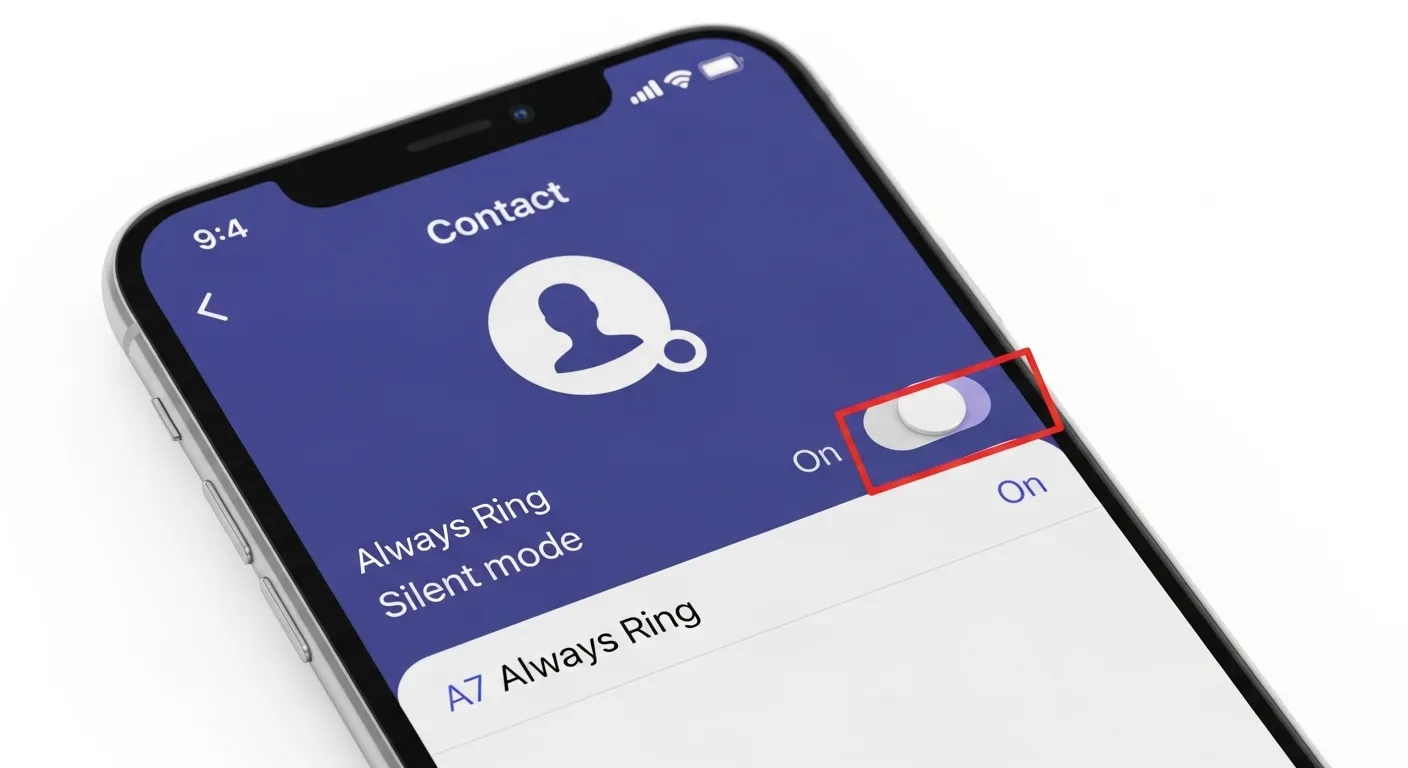
Sometimes we need our phones quiet, but there are people we can’t miss. Maybe it’s your mom, your boss, or your child’s school. Both Android and iPhone have a way to make sure calls from certain contacts still ring, even if your phone is on silent or in Do Not Disturb (DND) mode. The key is to use Emergency Bypass on iPhone or Do Not Disturb exceptions on Android.
On iPhone, Emergency Bypass lets one contact’s calls and texts make noise no matter what. On Android, you can set a contact as a favorite (starred contact) and then allow calls from favorites in your Do Not Disturb settings. It only takes a minute or two to set up, and once it’s done, you never have to worry about missing that call.
From my own experience, I keep my phone on silent most of the day, but I still want to hear calls from my mom. On my iPhone, I turned on Emergency Bypass for her, so her calls always ring. On my Android backup phone, I starred her contact and allowed favorites in DND. Both work great, and now I can keep my phone quiet without missing something important.
Enable Emergency Bypass for Calls
On an iPhone, you can make sure one person’s call always rings, even if your phone is on silent. To do this, open the Contacts app, pick the person, tap Edit, then choose Ringtone. At the top, you’ll see Emergency Bypass—turn it on. Now, that contact’s calls will ring out loud no matter what.
I use this for my parents because I keep my phone on silent at night. If they need me, I can’t miss it. This setting is great if you only want a few important people to reach you while keeping everyone else quiet.
Enable Emergency Bypass for Text Messages (Optional)
You can also use Emergency Bypass for texts. Open the same contact, tap Edit, then go to Text Tone. At the top, turn on Emergency Bypass. Now their messages will alert you, even when your phone is on mute.
I use this with my spouse. Sometimes a quick text is all that’s needed in an urgent moment. This way, I never miss an important message, but my phone still stays quiet for others.
Alternative Method: Focus Mode Exceptions
Apple also lets you use Focus Mode to allow certain contacts. Go to Settings → Focus, pick a mode like Sleep or Work, then tap People. Add the people who should be able to call or text you, even when Focus is on.
I like this method for work hours. I stay focused without random calls, but my family can still reach me. It’s a simple way to control who gets through, without turning Emergency Bypass on for each contact one by one.
Using Do Not Disturb Exceptions
On Android, the best way to let certain people call you on silent is with Do Not Disturb (DND) exceptions. Go to Settings → Sound & Vibration → Do Not Disturb → People. Choose Starred Contacts Only. This means only the people you star in your contacts can ring your phone. Everyone else stays quiet.
I use this myself. At night, my phone is always on silent, but I still want my parents to reach me. Since I added them as starred contacts, their calls always go through. It helps me rest without worrying about missing something important.
Mark Contacts as Favorites
To star a contact, open the Contacts app, pick the person, and tap the star icon at the top. Once you star them, they become a “favorite.” Then, if you set DND to allow starred contacts, their calls will ring even when your phone is silent.
I found this trick after I once missed a call from my doctor. Since then, I’ve starred my doctor and close family. Now I know I won’t miss urgent calls, but I still keep my phone quiet from everyone else.
Device-Specific Methods (Samsung, OnePlus, Pixel, etc.)
Some phones have their own version of this. On Samsung, go into DND and set “Priority Callers.” On OnePlus, you can add favorites right in the Phone app. On a Google Pixel, go to Settings → Sound & Vibration → Do Not Disturb → People and allow calls from certain contacts.
I’ve used both Samsung and Pixel, and the steps feel almost the same. The names in the menu are a little different, but the idea is always to choose the people who can break through silent mode. If you’re stuck, you can check the official help pages from Samsung or Google Pixel.
How to Set a Contact to Ring When Phone is on Vibrate (Extra Tip)
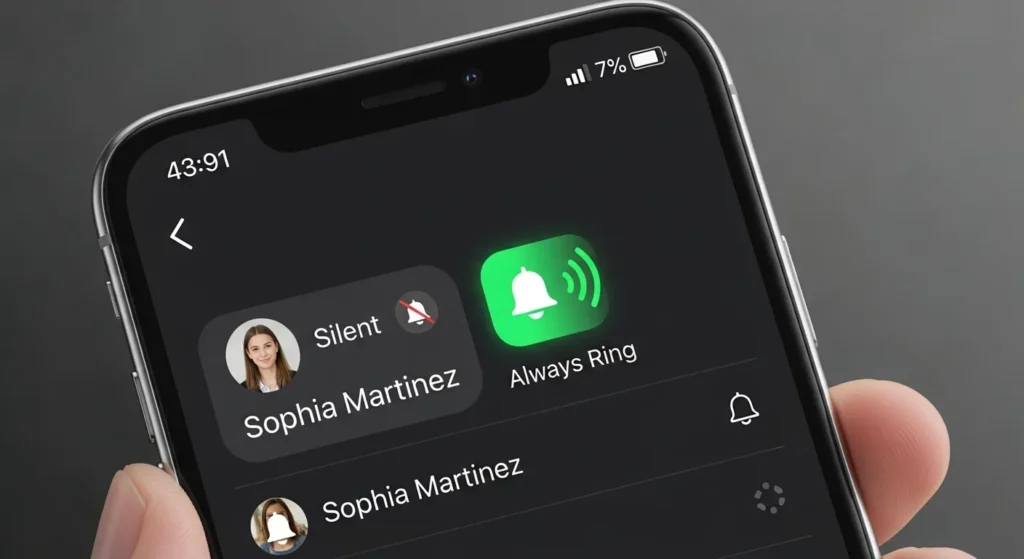
Some Android phones let you make one contact ring out loud even if your phone is on vibrate. You can find this setting when you edit a contact. On Samsung phones, for example, you go to Edit → Ringtone and may see an option called “Ring even when set to vibrate.” I use this for my family so I don’t miss their calls at night, even when I keep my phone quiet. Not every Android phone has this, but it’s worth checking.
If your phone doesn’t show this option, you can use Do Not Disturb (DND) exceptions instead. Mark the person as a favorite or starred contact in your phone. That way, their calls will still ring while everyone else’s is silent. I do this when I travel, so I can block work calls but still hear my spouse or close family. It takes a minute to set up, but it saves stress.
Troubleshooting & Common Issues
On iPhone, sometimes Emergency Bypass doesn’t work right away. This can happen if the contact has more than one number, and the bypass is only on for one of them. Sometimes you just need to restart your phone to make it work. If you’re still stuck, Apple’s official support page has step-by-step help.
On Android, the most common problem is with Do Not Disturb exceptions. If your contact’s calls don’t ring, check if they’re marked as a starred contact. I once had this problem with my mom’s calls—they weren’t coming through because I forgot to tap the star icon. Also, make sure your DND is set to allow “Starred contacts only.”
Another issue happens when you get a new phone. Your favorites list may not carry over, even if your contacts do. To fix this, open the person’s contact and look for the little star. If it’s missing, tap it to make sure their calls ring, even when your phone is on silent or vibrate.
FAQs (Frequently Asked Questions)
How to make a contact always ring even on silent?
You can do this by changing a few settings on your phone. On iPhone, turn on Emergency Bypass for a contact so their calls and texts ring even if your phone is on silent. On Android, go to Do Not Disturb and allow calls from Starred contacts. I use this for my mom’s number so I never miss her call at night, even when my phone is quiet.
Can you silence all calls except one person?
Yes, you can. On iPhone, use Emergency Bypass for that one person. On Android, star only that contact and set Do Not Disturb to allow calls from starred contacts only. I once did this with a teammate during a project. My phone stayed quiet for everyone else, but his calls came through right away.
Can I set my phone to ring only for family?
Yes. On iPhone, add your family to Favorites and then allow calls from Favorites. On Android, star your family contacts and allow calls from Starred contacts. I did this during a holiday trip. Work calls stayed muted, but my family could always reach me.
How do I bypass silent mode for texts?
On iPhone, Emergency Bypass also works for text messages. If you turn it on, that person’s texts will alert you even in silent mode. On Android, some phones let you choose who can send you alerts in Do Not Disturb > People. I use this for my kid’s school number, so any text from them comes through right away.
Conclusion
The best method on iPhone is Emergency Bypass. It makes sure important people can always reach you.
On Android, the best way is using Do Not Disturb with Starred contacts. You can choose who is starred, so only the people you want can ring through.
After setting it up, always test it. Ask the person to call or text you to check. I do this every time I set it, and it has saved me from missing important calls.