Show or Hide Holidays on Calendar on Samsung in 3 Steps
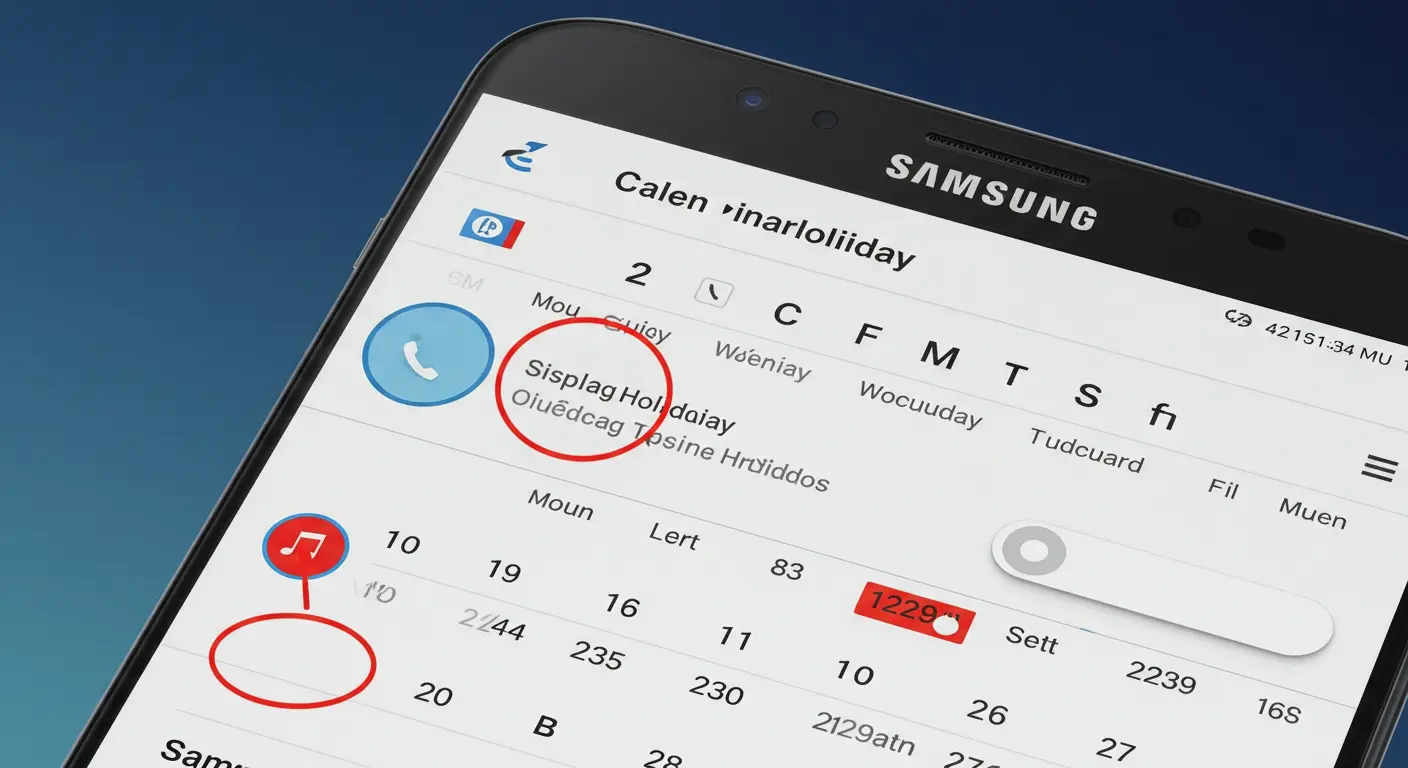
Setting up your calendar to show or hide holidays can save time and keep your schedule clear. I remember how frustrating it was when my calendar showed holidays from countries I didn’t need—cluttering my view and making it hard to focus on real tasks. Once I learned how to manage it, I felt more in control of my time. A simple adjustment can make your calendar a tool that works perfectly for you.
Choosing to display or hide holidays depends on your needs. Showing holidays can help you plan vacations or downtime with family. On the other hand, hiding them is useful if you want a clean, distraction-free look. For example, if you manage projects or have meetings with teams in different countries, showing relevant holidays helps avoid scheduling conflicts. It’s all about creating a setup that fits your life.
How to Show Holidays on Samsung Calendar
1.1 Using the Default Calendar Settings
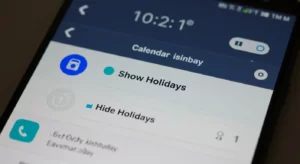
If you’re using the Samsung Calendar app, enabling holiday displays is simple and customizable. Open the app and tap the menu icon (three horizontal lines) in the top left corner. From there, go to Settings and look for the “Holidays” option. Toggle this on, and you’ll see holidays appear on your calendar. You can even choose the type of holidays, like national, religious, or personal events. I remember doing this for the first time when I moved to a new country—it made it easy to keep track of local holidays and plan my days better.
Customizing holidays in the app helps keep your schedule organized and relevant. For example, you can add only public holidays if you don’t celebrate religious ones. This setting is perfect for anyone balancing work, school, or family plans without getting distracted by unnecessary entries.
1.2 Syncing with Google Calendar
Syncing your Samsung Calendar with Google Calendar is a great way to add holidays automatically. First, log in to Google Calendar and open the Settings menu. Go to Browse calendars of interest and choose the holidays you want, like your country’s public holidays or international ones. Once done, make sure your Samsung Calendar is linked to the same Google account. Open the Samsung Calendar app, go to Manage Accounts, and sync your changes.
This feature saved me a lot of time when I worked on international projects. Instead of manually adding holidays for clients in other countries, I just synced Google Calendar. It was like having a global calendar assistant in my pocket. Syncing ensures your holiday data is always up to date across devices.
1.3 Using Third-Party Calendar Apps
Third-party apps like Google Calendar and Microsoft Outlook are great for showing holidays and syncing them to Samsung Calendar. For instance, you can enable regional holidays in Google Calendar, then link it to your Samsung Calendar. Similarly, Outlook allows you to add holidays for specific regions or religions and sync them with your device.
These apps are helpful if you’re managing multiple calendars. I once used Outlook to track work holidays alongside Samsung Calendar for personal events. It made everything seamless, as I could view all holidays in one place without switching apps. Plus, they often offer advanced customization options, like reminders for upcoming holidays, that can make your planning even more efficient.
How to Hide or Remove Holidays from Samsung Calendar
2.1 Using Calendar Settings
If your Samsung Calendar feels cluttered with holidays you don’t need, removing them is quick and easy. Start by opening the Calendar app and tapping the menu icon (three horizontal lines) at the top left. Navigate to Settings, then look for the list of calendars connected to your account. Find the holiday calendar and uncheck it to hide those entries from your view.
When I first discovered this, it was a lifesaver for cleaning up my schedule. My calendar showed public holidays from countries I wasn’t in, which made it harder to focus on important events. Unchecking those unnecessary options immediately gave me a clearer view of what actually mattered. It’s a simple tweak but makes a huge difference.
2.2 Unlinking Synced Accounts
If holidays are still showing up after adjusting the settings, they might be coming from a synced account like Google Calendar. To fix this, go to the Manage Accounts section in the Calendar app. Locate the synced account (e.g., your Google account), and either unlink it entirely or uncheck the holiday calendar under that account.
This feature came in handy when I had both personal and work calendars synced. At one point, I noticed duplicate holidays and irrelevant ones popping up, making my calendar messy. By managing the accounts and unchecking what I didn’t need, I streamlined everything into one view. Managing multiple calendars effectively not only declutters your schedule but also ensures you don’t miss important dates.
Troubleshooting Common Issues
Holidays Not Displaying After Enabling the Feature
If holidays aren’t showing on your Samsung Calendar after enabling the setting, there might be a sync issue or a missing configuration. First, ensure that the holiday calendar is properly selected under the Settings menu in the app. Check if the correct country or region is chosen—this is especially important if you’ve moved or your device’s region settings don’t match your preferences.
I once had this problem after changing my device language. The holidays disappeared because the calendar defaulted to a different region. To fix it, I updated the settings to match my current location. It only took a few clicks, but it saved me the frustration of manually adding events.
Issues with Syncing Holidays from Google Calendar
Sometimes, syncing holidays from Google Calendar can be delayed or fail entirely. Ensure your Google account is properly linked in the Samsung Calendar app by checking the Manage Accounts section. Also, verify that holiday calendars are enabled in Google Calendar under Settings > Browse calendars of interest. If the issue persists, refresh the sync by toggling the account off and back on or clearing the calendar app cache in your phone’s App Settings.
I once noticed that holidays I’d added on Google Calendar weren’t appearing in Samsung Calendar. It turned out the sync was paused because of a weak Wi-Fi connection. Reconnecting to a stronger network and refreshing the sync resolved the issue immediately.
Calendar Not Updating After Changes
When your calendar doesn’t update after making changes, it could be due to outdated app software or incorrect sync settings. Make sure your Samsung Calendar app is updated to the latest version through the Galaxy Store or Google Play Store. Additionally, verify that auto-sync is enabled under Settings > Accounts and Backup > Accounts. If updates still aren’t visible, try clearing the cache or restarting the device.
Once, I added a series of holidays on Google Calendar but couldn’t see them on my phone. It turned out I had disabled auto-sync while saving battery life. Re-enabling sync instantly pushed the changes to my Samsung Calendar, showing how a small toggle can make a big difference.
Tips for Managing Holidays on Your Calendar
Use Color-Coding for Different Holiday Types
One of the easiest ways to organize your calendar is by using color-coding for different types of holidays. For instance, you can assign red for public holidays, green for personal events, and blue for religious holidays. Most calendar apps, including Samsung Calendar, let you customize event colors. This makes it easy to distinguish between work-related and personal holidays at a glance.
When I first started color-coding, it completely changed how I managed my schedule. I could quickly see what days were national holidays versus school-related events for my kids. It’s such a small detail, but it gives your calendar a clear, organized look and makes planning much easier.
Set Reminders for Upcoming Holidays
Adding reminders for holidays ensures you’re never caught off guard. Samsung Calendar and other apps allow you to set notifications for specific events. You can set them a week, a day, or even an hour in advance, depending on how much time you need to prepare. For example, a reminder for a public holiday can help you plan groceries or schedule work deadlines earlier.
I’ve found this particularly helpful around major holidays like New Year’s or Thanksgiving. Setting reminders a week in advance gives me time to wrap up work and plan family gatherings. It’s also great for less obvious holidays—like flag day or a school break—so you’re not scrambling at the last minute.
Customize Calendar Preferences for a Personalized Experience
Tailoring your calendar settings to suit your needs can make holiday management seamless. You can choose to display only holidays relevant to your location, sync with other accounts like Google Calendar, or even enable widgets for quick access. Samsung Calendar’s settings let you manage visibility, reminders, and event types, giving you full control over your schedule.
For me, enabling widgets on my home screen was a game-changer. I can quickly glance at my upcoming holidays and events without opening the app. It saves time and keeps me more organized. Personalizing your calendar doesn’t take much effort, but it goes a long way in creating a stress-free planning system.
FAQs ( Frequently Asked Questions )
1. How do I add holidays to my Samsung Calendar?
To add holidays to your Samsung Calendar, open the app and go to Settings. Look for the Show Holidays option and toggle it on. You can choose which type of holidays to display, such as national, religious, or regional holidays. I personally use this feature to keep track of local holidays while working on international projects, which helps me avoid scheduling conflicts.
2. Why aren’t holidays showing up on my Samsung Calendar?
If holidays aren’t appearing after you’ve enabled them, try checking your region settings. Sometimes, the calendar may not show holidays because it’s set to a different country or region. I’ve had this issue before when switching regions, but updating the region to match my location fixed it instantly. You can also try refreshing the sync or checking if your Google account settings are properly linked.
3. Can I remove holidays from my Samsung Calendar?
Yes, you can remove holidays by going into the calendar settings. Simply open the app, go to Settings, and uncheck the box next to Show Holidays or any specific holiday categories you no longer want to see. I found this feature useful when I wanted a simpler calendar view without international holidays cluttering it.
4. How do I sync Samsung Calendar with Google Calendar to show holidays?
To sync your Samsung Calendar with Google Calendar, open the Google Calendar app and enable the holiday calendars you want. Then, in the Samsung Calendar app, go to Manage Accounts and ensure your Google account is linked. Once synced, the holidays you selected in Google Calendar will automatically appear on your Samsung Calendar. This is a great way to get holidays from multiple regions or countries.
5. Can I set reminders for holidays in Samsung Calendar?
Yes, you can set reminders for holidays in Samsung Calendar. Simply create an event for the holiday, and you can set a reminder for it, whether a few days or hours before. I always set a reminder for long weekends or important public holidays so I can plan ahead and prepare for family activities.
Conclusion
Managing your Samsung Calendar’s holiday settings is a simple way to keep your schedule clear and organized. By showing only the holidays that are important to you or hiding them completely, you can reduce distractions and focus on what matters. I’ve found that adjusting my calendar like this makes my weekly planning much easier, especially when balancing work and family activities.