Uninstall Any Android Launcher – Step-by-Step Guide with Tips
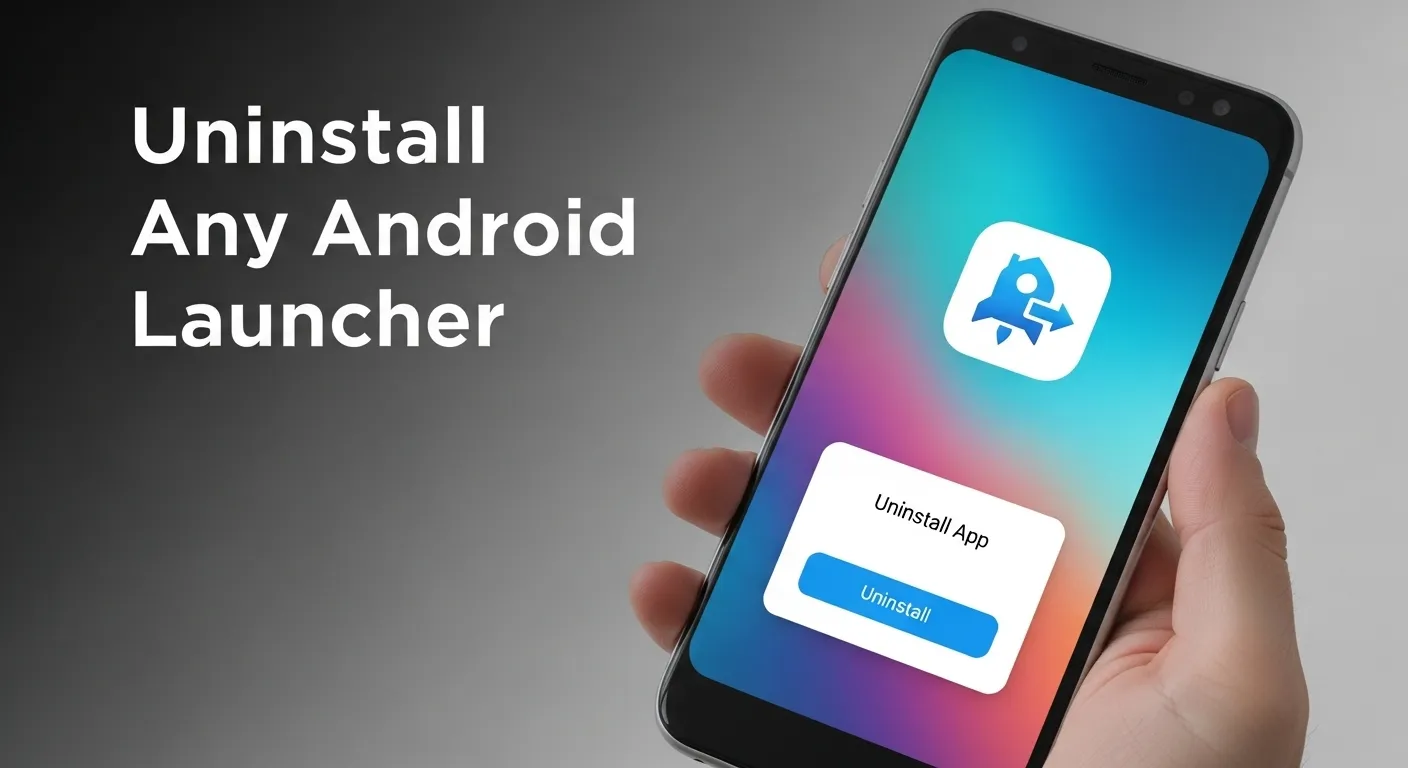
An Android launcher is the app that controls your home screen and app drawer. It decides how your apps look, how you swipe between screens, and how you open things. Every phone comes with a default launcher, but you can also download other ones from the Play Store to change the style.
Sometimes launchers can cause problems. I once tried a launcher that made my phone slow, filled it with ads, and even hid some of my apps. Many people uninstall launchers because they use too much battery, show pop-ups, or just make the phone feel messy. In the end, most users want to go back to the simple, original setup.
The process to remove a launcher is not hard. Go to Settings > Apps, pick the launcher you don’t want, and tap Uninstall. If the uninstall button is gray, that means it’s set as your default home app. Just switch back to your phone’s original launcher, and then you can delete the one you don’t like. This way your phone runs faster and feels clean again.
What is an Android Launcher?
An Android launcher is the app that controls your phone’s home screen and how you move around it. It decides how your apps look, how you swipe between screens, and where things are placed. You can think of it like the “home app” on your device. Without it, you wouldn’t be able to open apps or even see your wallpaper. Every Android phone, like Samsung, Google Pixel, or Motorola, comes with a built-in launcher.
There are two kinds of launchers: system launchers and third-party launchers. The system launcher (or default launcher) is the one that comes already installed, like Samsung’s One UI Home or Google’s Pixel Launcher. A third-party launcher is one you download yourself from the Google Play Store, such as Nova Launcher or Smart Launcher. I remember trying Nova Launcher for the first time — it felt like giving my old phone a fresh new style without buying a new device.
Some of the most popular launchers today are Nova Launcher, Microsoft Launcher, and Smart Launcher. Each one gives a different look and feel. Nova is known for deep customization, Microsoft Launcher connects with Outlook and other Microsoft tools, and Smart Launcher is clean and simple. Even if your phone feels slow or boring, changing the launcher can make it feel brand new.
Reasons You May Want to Uninstall a Launcher
A launcher might look fun at first, but sometimes it causes more problems than it solves. Many launchers come with ads or extra apps you never wanted. I once tried a “fast” launcher, and within hours my screen was filled with random shortcuts and annoying pop-ups. If this happens to you, it’s best to uninstall the unwanted launcher and keep your phone simple.
Some launchers also slow down your phone. They can drain your battery, freeze, or make swiping between screens feel heavy and laggy. I had one that made my phone so slow I even missed a call because the screen got stuck. Removing that launcher was the only way to get my phone working smoothly again. Even Google suggests using lighter apps if your device feels slow, and launchers are no exception.
In some cases, a launcher you don’t remember installing may show up on your phone. These are often rogue or fake launchers, and they can change your home screen without asking you. Once, I helped a friend whose phone had a shady launcher called “Quick Launcher.” It kept opening by itself until we switched back to the default home app and deleted it. If you see something like this, it’s a red flag.
You may also just want to go back to your phone’s original home screen. The default launcher is usually safe, smooth, and built to match your device. If no custom launcher feels right, switching back gives you a clean setup and fewer problems with updates or system tools. Sometimes simple is better.
Step-by-Step Guide: How to Uninstall Any Android Launcher
Open Settings
First, unlock your phone and open the Settings app. The icon looks like a gear. This is where you can change things on your phone, like Wi-Fi, sounds, or apps. On my own phone, I keep the Settings icon on the home screen so I can get to it quickly. If you don’t see it right away, swipe down on your screen and type “Settings” in the search bar.
Go to Apps / App Management
Next, scroll down until you find Apps or App Management. The name might be a little different depending on your phone brand. For example, Samsung and Xiaomi use different words, but they all mean the same thing. This is the place that shows you all the apps on your phone. When I first used a Huawei phone, I got confused because “App Management” was hidden under “Advanced Settings.” So don’t worry if it takes a few tries to find it.
Find and Select the Launcher
Now, look through the list of apps to find the launcher you want to remove. Launchers usually have names like “Launcher,” “Home,” or brand names such as “Nova Launcher” or “Smart Launcher.” If you’re not sure which one is active, go back to your home screen. The style of the icons and menus will give you a hint. I once had two launchers on my phone and almost deleted the wrong one, so be sure to pick the right app.
Tap Uninstall
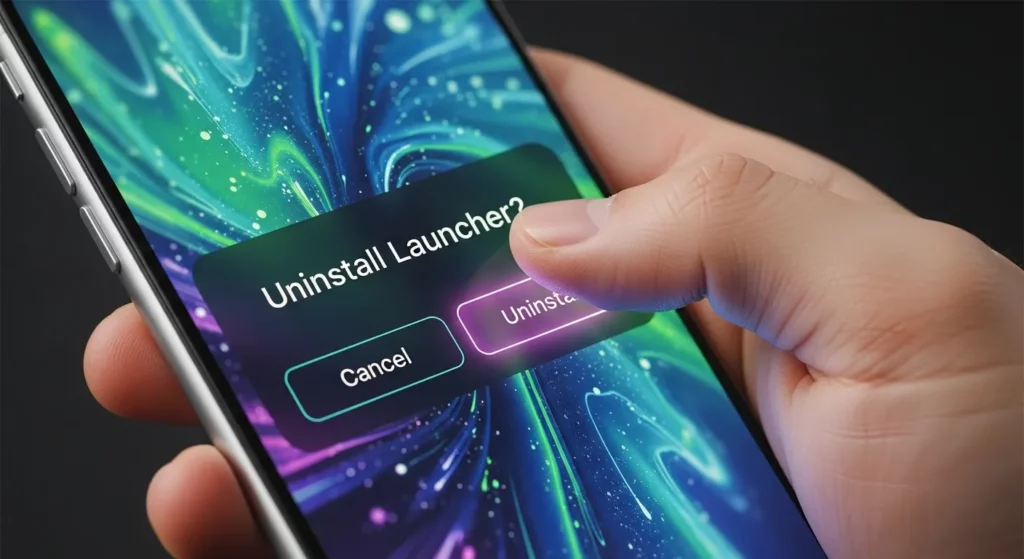
Tap the launcher’s name, then press Uninstall. A small box may pop up asking you to confirm—just press OK. Your phone will remove the launcher and switch back to the default home screen. If the uninstall button looks gray and doesn’t work, don’t worry. That just means the launcher is set as your default. You’ll need to change your default home app before you can uninstall it (I’ll show you how in the next section).
If the “Uninstall” Button is Grayed Out
Sometimes, when you try to remove a launcher, the uninstall button is gray. This usually happens because the launcher is set as your default home app. Android won’t let you remove the launcher that your phone uses as its main home screen. Your phone needs a “home base” to work properly, and right now that launcher is it.
The solution is simple: change your default home app. Go to Settings > Apps > Default Apps > Home App. Then pick a different launcher, like the one that came with your phone. After that, go back to the launcher you want to remove. You’ll see that the uninstall button is now available.
I remember trying a new launcher that promised faster speed, but it had too many ads. When I wanted to uninstall it, the button was grayed out, and I thought my phone was broken. Changing back to the phone’s original launcher fixed it right away. If you need step-by-step help, Google has a guide on managing default apps that explains it clearly.
How to Change the Default Launcher Before Uninstalling
Before you can uninstall a launcher, your phone needs a default home screen app to work properly. To change it, open Settings and go to Apps or App Management. Then tap Default Apps and select Home App. You will see a list of all launchers installed on your phone. Pick your phone’s original launcher, and it will become the default home screen.
From my experience helping friends with their Android phones, this step is often the one that confuses people. The “Uninstall” button may be grayed out, but changing the default launcher fixes it. Once you choose a new default, your phone knows which home screen to show when you press the Home button. This keeps your phone from freezing or showing a blank screen after removing a launcher.
You can also use this step to try a new launcher if you want a fresh look or better performance. After picking your new default, press Home, and your phone will confirm the change. Personally, I like switching between a simple launcher for everyday use and a feature-packed launcher when I want more customization. It’s a simple trick that keeps your phone fast and easy to use.

Special Cases
Pre-installed or System Launchers
Not all launchers can be removed like regular apps. Your phone often comes with a default system launcher that is part of Android. I’ve seen many people try to uninstall it and get frustrated when the uninstall button is grayed out. This happens because Android protects the system from breaking. The good news is you can disable the launcher instead. Disabling it stops it from running and lets you use a new launcher safely.
To disable a system launcher, go to Settings > Apps > [Launcher Name] > Disable. Your phone may warn that disabling the app could affect some features. From my experience, once disabled, your phone switches to the new launcher without problems. It’s much safer than trying to force uninstall a system launcher.
Rogue or Malicious Launchers
Sometimes, a launcher appears on your phone even if you didn’t install it. These could be rogue or malicious apps. Signs include random ads, pop-ups, unusual battery drain, or settings that change by themselves. I once helped someone whose launcher kept changing the home screen—it was annoying but fixable.
You can remove a rogue launcher by starting in Safe Mode. Safe Mode turns off third-party apps so you can uninstall the problem app safely. If that doesn’t work, a factory reset can restore your phone, but remember to back up your data first. Advanced users can also use ADB or PC tools to remove stubborn launchers safely.
Rooted Devices
Rooting your phone gives you full control, including removing apps that Android usually protects. On a rooted device, you can uninstall a system launcher using special apps. In my experience, rooting is the only way to remove some bloatware completely.
Rooting has risks. It can void your warranty, and one wrong step can break your phone. I usually recommend rooting only for users who understand the process. Tools like Root Uninstaller or Titanium Backup work well. Rooting gives you full control, but you must be careful because you’re changing important system files.
Alternative Methods to Remove a Launcher
Sometimes, the normal uninstall method doesn’t work, especially for stubborn or pre-installed launchers. One way to fix this is by using ADB commands. ADB, or Android Debug Bridge, lets you connect your phone to a computer and remove apps that are usually protected. I’ve done this a few times with tricky launchers, and it works well if you follow the steps carefully. You just need to turn on Developer Options and connect your phone with a USB cable, which is easy once you know how.
You can also try third-party uninstall tools like Revo Uninstaller or Shizuku. These apps can remove launchers that normal methods cannot. I like Shizuku because it works even on phones that are not rooted. It shows all your apps clearly, so you don’t remove anything important by mistake.
If nothing else works, a factory reset can get rid of any launcher. This wipes all apps and data, so make sure to back up your phone first. I had to do this once when a launcher completely blocked my home screen. It feels extreme, but it is a sure way to restore your phone and install a new launcher safely.
What Happens If You Remove All Launchers?
If you remove all launchers from your Android phone, your device may stop working. I learned this once when I uninstalled a launcher I didn’t like—I ended up staring at a black screen. Launchers are what show your apps and home screens, so without one, you can’t open anything.
It’s very important to keep at least one launcher on your phone. Even if it’s not your favorite, having the system launcher as a backup can save you from big problems. I always keep my phone’s original launcher installed along with any custom launcher, just in case.
If you accidentally delete a launcher, don’t worry. You can reinstall it from the Google Play Store or use a factory reset if needed. Sometimes, connecting your phone to a computer and using ADB commands can help restore the launcher, which I’ve had to do once when my phone froze after removing a bad launcher.
FAQs About Uninstalling Android Launchers
Can I reinstall a launcher after uninstalling?
Yes! I’ve done this many times. Just go to the Google Play Store, find the launcher, and install it again. Most launchers remember your old settings, so you don’t have to set everything up again.
How do I know which launcher is active?
Go to Settings > Apps > Default Apps > Home App. The launcher that is active will be shown there. I always check this if I have more than one launcher installed to make sure I don’t uninstall the one I’m using.
Is it safe to uninstall a launcher?
If it’s a third-party launcher, yes, it’s usually safe as long as you have another launcher installed. But removing the system launcher can make your phone act weird or freeze. I always make sure a trusted launcher is set as default before uninstalling anything else—it’s a simple step that avoids big problems.
Best launchers to replace a bad one?
Some of my favorites are Nova Launcher, Microsoft Launcher, and Smart Launcher. They are fast, simple, and updated often. Using a good launcher helps your phone run smoother and keeps it safe from bad apps.
Conclusion
Uninstalling a launcher on Android is easier than it seems. First, go to your phone’s settings, then Apps, find the launcher you want to remove, and tap “Uninstall.” If the button is grayed out, just change your default home app to another launcher first. From my experience, doing this step carefully stops your phone from acting strangely or crashing.
One thing I always do is check if a launcher is safe before installing it. Some launchers may look nice but can show ads, slow down your phone, or even access your data. I like to use launchers with good ratings on the Play Store and from developers I trust. This small check can save you a lot of trouble and keeps your phone running smooth.
Finally, make sure you always have at least one safe launcher on your device. Deleting all launchers can make your phone hard to use, and you may need extra steps to fix it. Trusted launchers like Nova, Microsoft Launcher, or your phone’s original launcher are safe and easy to use. Using a reliable launcher keeps your phone secure and makes your home screen simple and fast.