Volume Buttons Not Working! Complete Guide for Phones, Laptops & More

When your device’s volume buttons stop working, it can be very annoying. These buttons are not just for turning music up or down. They also control ringtones, alerts, and even sounds in games and apps. We use them many times a day without thinking about it. When they stop working, even watching a video or answering a call can be a problem.
I once had my phone’s volume button break while I was on a long train ride. I couldn’t turn the sound down when someone called, so I had to dig through the settings while people stared. It made me realize how much we depend on these little buttons. Sometimes the problem is small, like dirt stuck under the button. Other times, it’s more serious, like damaged hardware.
The trouble can come from both hardware and software. It might be a piece of lint, a loose part, or a small bug after a system update. Figuring out if it’s a physical or software issue is the first step. The good news is, many times you can fix it yourself before you take it to a repair shop.
Common Causes of Volume Buttons Not Working

Sometimes, volume buttons stop working because of wear and tear. Over time, the tiny parts under the button can loosen or break. This can happen if the device is dropped or if the button is pressed too hard. I have seen this with old phones—after years of use, the button no longer makes a click sound. In these cases, changing settings won’t help, and the button may need to be replaced.
Another reason is dirt or dust stuck around the button. Even a small bit of grime can make the button feel stuck or hard to press. I once fixed a laptop’s volume key by cleaning it with a cotton swab and a little isopropyl alcohol—it worked right away. Dust can come from pockets, bags, or even skin oils, so keeping the device clean is important.
Sometimes, software problems cause the issue. An update might have a bug, or the settings could be damaged. For example, an iPhone update once made volume buttons stop working until Apple released a fix (Apple Support). On computers, audio drivers can also cause trouble if they are old or broken. Even water or moisture—sometimes not visible—can damage the inside parts and make the buttons stop working.
Initial Checks Before Troubleshooting
Before you think your volume button is broken, try a few quick checks. Many times, the problem is small and easy to fix. I’ve helped a lot of people with this, and often it’s something simple like a case pressing on the button or sound going to the wrong place.
Take off your phone or laptop case. I once had a case that was too tight, and it kept pressing on my phone’s volume button. When I removed the case, the button worked right away. Some cases bend or shift over time and press on buttons without you noticing.
Unplug headphones or turn off Bluetooth. If your device is connected to headphones or a Bluetooth speaker, the sound might be going there instead. I’ve seen people think the button was broken, but the audio was playing in another room through a speaker.
Check if your device is muted. On phones, the “Do Not Disturb” setting can make it seem like the button is not working. On laptops, look for the small speaker icon—if there’s a line through it, click it to unmute.
Restart your device. This is like giving it a short nap so it can work better. Apple and Microsoft both say restarting is one of the first things you should try (Apple Support, Microsoft Support). I’ve had phones and computers start working again after a simple restart.
Step-by-Step Troubleshooting Guide
Inspect and Clean the Volume Buttons
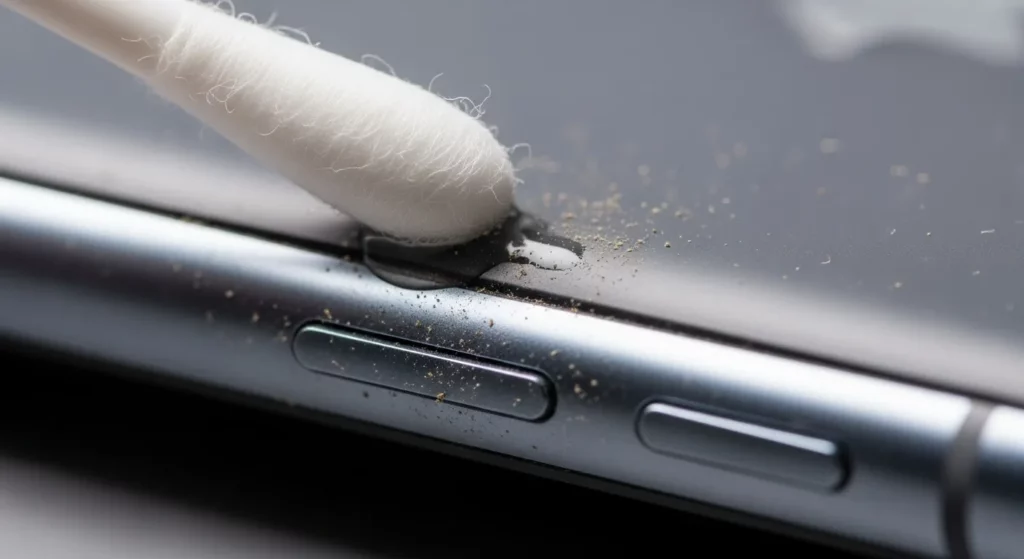
Start by looking closely at your volume buttons. Check if they have scratches, dents, or something stuck inside. Sometimes, a phone or laptop case can press on them and stop them from moving right. Take the case off to see if that helps.
One time, my phone’s button stopped working because a tiny piece of lint was stuck in it. I used a soft cloth and a wooden toothpick to gently remove it, and it worked again right away. You can also use a cotton swab with a small drop of isopropyl alcohol, but make sure it’s completely dry before you turn your device back on.
If you have compressed air, a short spray can blow away dust without taking the device apart. Never use sharp tools that might scratch the surface.
Restart or Reboot Your Device
Restarting your device can fix many small problems. It clears out temporary files and refreshes the system. This can help buttons respond again.
On an iPhone, press and hold the power button and swipe to turn it off, then turn it back on. On Android, hold the power button, then tap Restart. On Windows, click the Start Menu → Power → Restart. On Mac, click the Apple Menu → Restart.
I’ve had my laptop’s volume keys stop working after a system freeze. Restarting it fixed the problem in less than two minutes.
Check Sound and Audio Settings

If the volume buttons don’t work, check your sound settings. On phones, make sure the ringer and media volume are turned up. On computers, make sure the correct audio output device is chosen — like speakers instead of Bluetooth headphones.
Open the sound settings on your device and try changing the volume there. If it works on-screen but not with the buttons, it’s likely a hardware issue. On Windows, right-click the sound icon → Open Sound Settings. On Mac, go to System Preferences → Sound.
Once, I thought my phone’s button was broken. But the sound was going to my wireless earbuds, which were still connected inside my bag!
Update Software or Firmware
Outdated software can cause button problems. Updates often fix bugs that affect sound and buttons.
On iPhone, go to Settings → General → Software Update. On Android, go to Settings → System → Software Update. For Windows, open Settings → Update & Security. On Mac, go to System Settings → General → Software Update.
I once had an Android phone that wouldn’t respond to the volume buttons until I updated it. After the update, not only did the buttons work, but the battery lasted longer too. You can check for updates on the official sites like Apple Support and Microsoft.
Use Safe Mode (Phones)
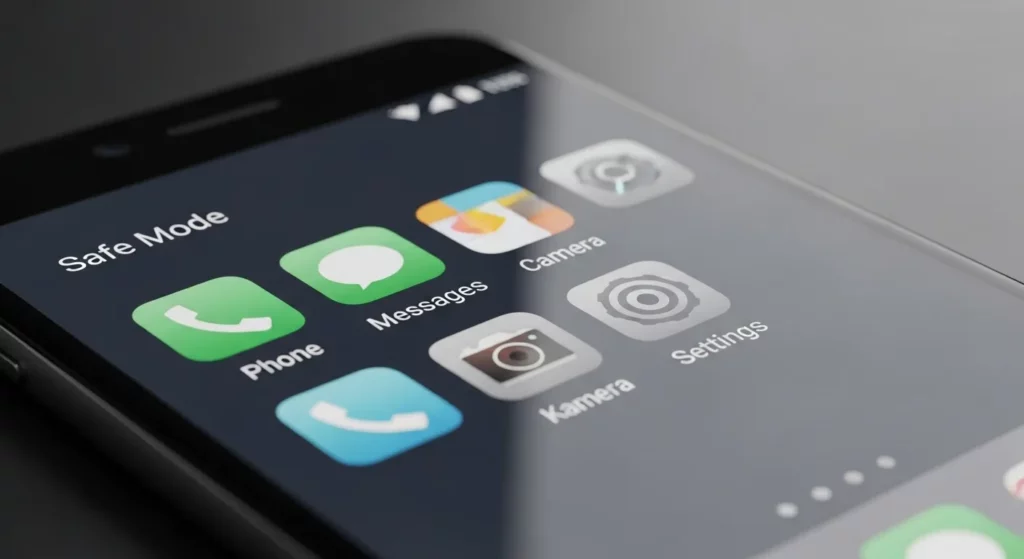
Safe Mode lets your phone run only its basic apps. This is useful to see if another app is causing the problem.
On most Android phones, hold the power button, tap and hold Power Off, then choose Safe Mode. For Samsung, you might need to hold the volume down button while the phone starts up. iPhones don’t have Safe Mode, but you can uninstall recent apps to test.
I once had a music app take over my volume buttons. When I tried Safe Mode, the buttons worked fine. I deleted the app, and everything went back to normal.
Reset Device Settings
If nothing else works, try resetting your device’s settings. This will put the sound and button settings back to normal without erasing your data.
On iPhone, go to Settings → General → Transfer or Reset iPhone → Reset All Settings. On Android, go to Settings → System → Reset Options → Reset All Settings. For Windows, run the Audio Troubleshooter under Settings → System → Sound.
I’ve done this on my iPad after weeks of weird sound issues. It fixed the problem, but I had to re-enter my Wi-Fi password afterward.
Device-Specific Fixes
iPhone Volume Buttons Not Working
If your iPhone’s volume buttons don’t work, you can still change the sound. A quick fix is to turn on AssistiveTouch. Go to Settings → Accessibility → Touch → AssistiveTouch and switch it on. This puts a small button on your screen that lets you change the volume and use other tools.
I’ve used this many times to help friends when their buttons stopped working. While you use AssistiveTouch, check if your iOS needs an update. Go to Settings → General → Software Update. Apple updates often fix bugs that cause button problems. If nothing helps, contact Apple Support or make an appointment at a Genius Bar on Apple’s site.
Android Volume Buttons Not Working
Android phones can have button problems for different reasons. Start by clearing the cache partition. This removes temporary files that might cause trouble. You’ll need to start your phone in Recovery Mode—check your phone brand’s help page for the steps.
If you need to control volume now, use the on-screen volume slider. Tap the settings icon next to it to open more sound options. In my repair work, I’ve seen bad apps cause button problems. Think about any apps you added before the problem started. Try removing them and see if the buttons work again.
Laptop/PC Volume Keys Not Working
If your laptop volume keys don’t work, the function key mode might be off. Many laptops have this setting in the BIOS/UEFI menu. Look for “Hotkey Mode” or “Action Keys Mode.” Check your laptop brand’s help page for exact steps.
If that’s not it, update your audio drivers. Right-click the Start button, choose Device Manager, then update under “Sound, video and game controllers.” I’ve seen this fix work right away in some cases. Also check your keyboard settings, especially if you use an external keyboard—it might have its own settings.
Temporary Alternatives to Physical Buttons

If your volume buttons don’t work, you can still change the sound in other ways. One simple way is to use the on-screen volume slider. On iPhones, you can find it in the control center. On Android phones, it’s in the quick settings. On computers, you can find it on the taskbar or menu bar. I once had my iPhone’s volume button stuck on a road trip. The on-screen slider saved me from blasting music too loud in the car.
Another option is to use volume control apps. These let you change the sound on your screen without pressing the buttons. Some apps let you set different volumes for music, calls, and alarms. On iPhones, you can turn on AssistiveTouch—it’s built in and safe to use. I once used it when my phone was in a waterproof case, and it worked without taking the case off.
You can also use connected accessories. Bluetooth keyboards, wireless headsets, or some TV remotes can change the volume. Many headphones have volume buttons on the cord or ear cups. One time my laptop keys stopped working after I spilled coffee. I used a Bluetooth speaker with its own buttons, and it worked great. Just make sure the device works with your phone or computer before buying.
When to Seek Professional Repair
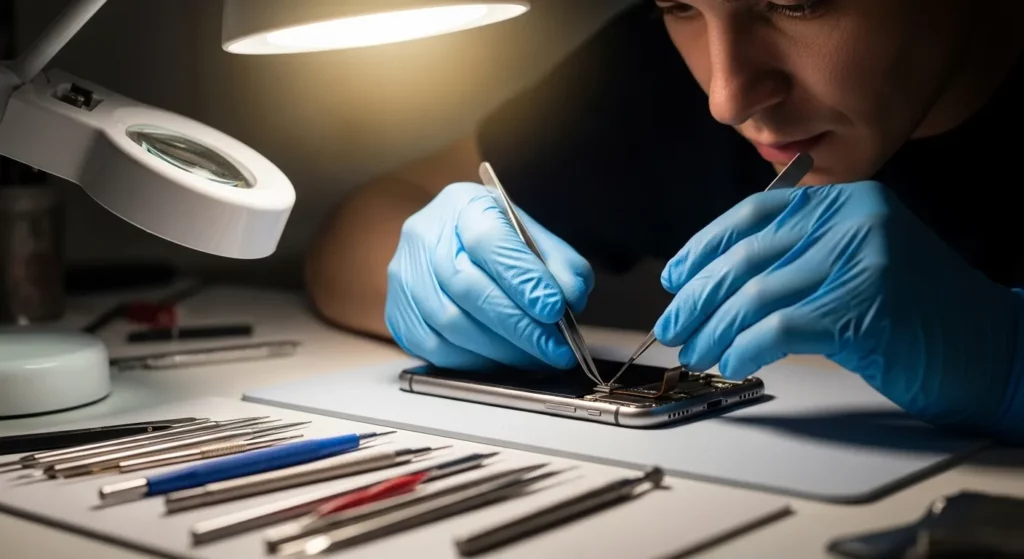
If you tried all the easy fixes and your volume buttons still do not work, it might be a hardware problem. A clear sign is when the button feels loose, stuck, or does not click like it used to. This can happen if your device is dropped or gets wet — even a small spill can cause damage inside. Another sign is when the volume changes by itself without you touching it. In these cases, you will likely need a repair shop.
From my time working with repair techs, most broken volume buttons need the flex cable or the button part replaced. On phones, this can cost between $30 and $120. Laptops can cost more. Phone repairs often take less than an hour, but can take a few days if parts are not ready. Some official service centers, like Apple Support or Samsung Repair, can even fix it the same day if you book ahead.
Before you pay for a repair, check if your device is still under warranty or has a protection plan. Many companies will fix buttons for free if it is a known problem. If your warranty is still good, go to an official service center so you keep your coverage. Even without a warranty, official centers use real parts that last longer. I have seen cheap parts break fast, so it is worth doing it right the first time.
Preventive Tips to Avoid Future Volume Button Issues

Taking care of your device’s volume buttons is simple if you make it a habit. Keep them clean and dry so they work smoothly. Even a little dust or sticky stuff can make them hard to press. I once spilled soda near my phone, and just a few drops made the button stick for days. If you need to clean, use a soft cloth or cotton swab with a little 70% isopropyl alcohol, then let it dry before using the device.
A phone case can protect your device from drops, but some cases make the buttons harder to press. Choose a case with soft, raised button covers so they are protected but still easy to use. I had a hard-shell case that made my buttons almost useless, so I switched to a flexible TPU case. Brands like Spigen and OtterBox make cases designed with button protection in mind.
Don’t skip software updates. They can fix bugs that cause volume buttons to stop working. Updates also keep your phone safe from other problems. You can check Apple’s iOS update guide or Google’s Android update help page for step-by-step help. I check for updates once a month, right after I clean my phone, so my buttons and my system stay in good shape.
Conclusion
When your volume buttons stop working, it’s rarely just one cause. It could be something simple, like dust under the button, or a quick setting that got changed without you noticing. Other times, it’s a deeper software glitch or even worn-out hardware. Over the years, I’ve seen many cases where people assumed they needed a repair right away, but a quick reboot or settings check solved it in minutes. That’s why it’s smart to try the easy steps first—clean, restart, update—before you think about spending money on repairs.
If none of the steps help, that’s when a professional repair makes sense. At that point, you’ve ruled out the easy fixes, and it’s likely a hardware issue that needs the right tools and parts. Always go to an authorized repair center or trusted technician—this protects your device and your warranty. You can even check the manufacturer’s official support pages, like Apple’s guide or Microsoft’s help center, for safe, step-by-step instructions. By being patient and methodical, you’ll either solve the problem yourself or know exactly what needs fixing when you hand it to a pro.