YouTube App Not Updating – Causes & Fixes

If your YouTube app won’t update, you’re not the only one. I’ve seen this happen many times on both Android and iPhone. It can be annoying, especially when you just want to watch a video. This problem can happen for many reasons — slow internet, not enough storage, a glitch in the Google Play Store or App Store, or even because your phone’s software needs an update. I’ve helped people who thought their phone was broken, but it turned out to be a simple cache problem.
From my own experience, the “YouTube not working after update” issue is one of the most common. It often starts when you see an update notice, you press “Update,” and then… nothing happens. Sometimes the download freezes, sometimes it won’t start at all. This is because updates need many things to work together — your internet, your phone’s storage, the app store, and even background settings you may not know about.
The good news is, you can usually fix this yourself. Most problems are easy to solve if you know where to look. It could be as simple as switching Wi-Fi networks, clearing the app’s cache, or updating your phone’s system. In this guide, I’ll walk you through each step so you can get back to watching YouTube without any “update failed” messages. If you need extra help, Google’s official support site (support.google.com) is also a great place to check.
Common Reasons Why the YouTube App Is Not Updating
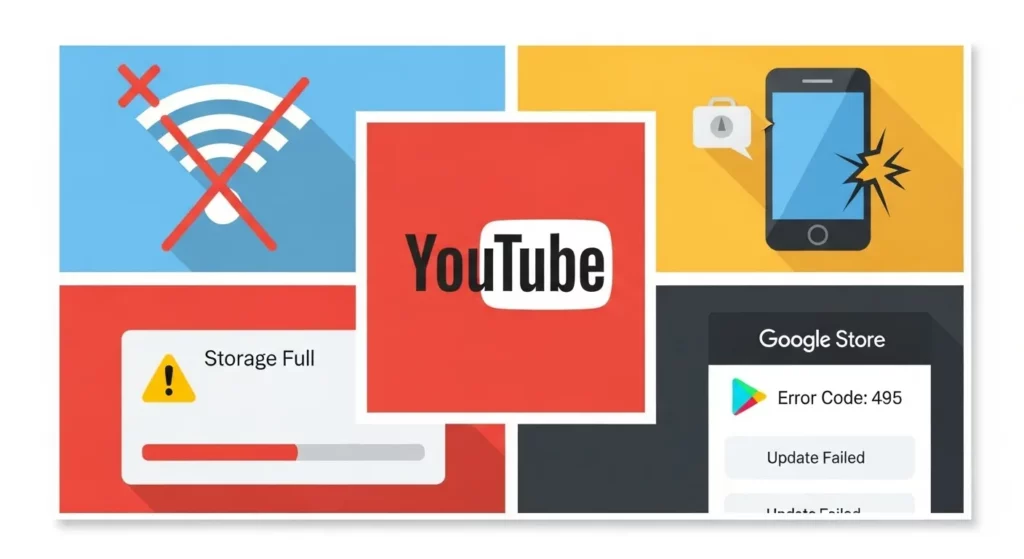
Poor or Unstable Internet Connection
Sometimes the problem is not your phone — it’s the internet. If your Wi-Fi is weak or your mobile data drops, the YouTube update can get stuck or show “download pending.” This happened to me once when I was using free Wi-Fi at a café. The update bar didn’t move at all.
If this happens, try switching to mobile data or a different Wi-Fi network. You can also check your speed with Speedtest.net. If the speed is low, restart your router or turn Airplane Mode on and off.
Google Play Store or App Store Issues
Your app store can also cause problems. On Android, the Google Play Store keeps temporary files, called cache. If the cache is damaged, updates may fail. One time my YouTube update stayed stuck for hours. Clearing the Play Store cache in Settings > Apps > Google Play Store > Storage > Clear Cache fixed it.
On iPhones, you can sign out of your Apple ID and sign back in. Also, make sure your Play Store or App Store is up to date, because they get updates too.
Insufficient Storage Space
If your phone’s storage is almost full, the YouTube update may not download. I ran into this problem while traveling. My phone was full of photos and videos, and YouTube refused to update.
To fix it, free at least 1 GB of space. Delete unused apps, old files, or move photos to cloud storage like Google Drive or iCloud. After that, the update should install.
Device Compatibility Problems
Some old phones can’t run the newest version of YouTube. You might see “This version of YouTube is out of date” with no update button. This means your phone is no longer supported.
Check your phone’s model and system version in the settings. If it’s too old, you can still watch videos by going to youtube.com in your browser. It’s not the same as the app, but it works.
Operating System Outdated
If your phone’s system is too old, new apps may not update. Developers make apps to work with the latest system features. I learned this the hard way after skipping Android updates — suddenly many of my apps stopped updating.
To fix it, go to Settings > System > System update (Android) or Settings > General > Software Update (iPhone) and install the latest version. This will let YouTube update and keep your phone safe.
Step-by-Step Fixes for YouTube App Not Updating

Check Your Internet Connection
First, make sure your phone is connected to the internet. Open a website in your browser to test. If it’s slow or not loading, switch between Wi-Fi and mobile data. If you use Wi-Fi, restart your router by unplugging it for 30 seconds, then plug it back in.
In my own experience, many “update problems” were just weak Wi-Fi signals, not the app itself.
Clear Cache and Data for YouTube
Old app files can stop updates from working. Clearing the cache removes these temporary files. Clearing data resets the app to its default settings (you will need to sign in again).
Android: Go to Settings > Apps > YouTube > Storage and tap Clear Cache, then Clear Data.
iOS: Go to Settings > General > iPhone Storage, find YouTube, and choose Offload App, then reinstall.
Clear Cache and Data for Google Play Store

If the Play Store is not working right, YouTube may not update. On Android, go to Settings > Apps > Google Play Store > Storage. Tap Clear Cache and Clear Data. This won’t delete your apps — it just refreshes the Play Store.
I once fixed my nephew’s tablet this way, and the update worked right after.
Uninstall and Reinstall YouTube
Sometimes the best fix is to delete YouTube and install it again. On Android, open the Play Store, search for YouTube, tap Uninstall, then Install. On iOS, press and hold the app icon, choose Remove App, then reinstall from the App Store.
Always download from trusted places like Google Play or Apple’s App Store.
Check for System Updates
If your phone’s system is out of date, the newest YouTube may not work.
Android: Go to Settings > System > System Update.
iOS: Go to Settings > General > Software Update.
System updates often fix app issues and improve phone performance.
Free Up Storage Space
Updates need free space to install. Go to Settings > Storage to check. Delete unused apps, clear your downloads folder, or move photos and videos to cloud storage like Google Photos or iCloud.
Think of it like making space in a closet — no space means no new clothes.
Remove and Re-add Google Account
A problem with your Google account can block updates. Go to Settings > Accounts, select your Google account, and tap Remove Account. Restart your phone, then add your account again.
I’ve used this method when nothing else worked, and it fixed the issue right away.
Install an Older Version (Temporary Fix)
If your phone is too old for the latest YouTube, you can install an older version. Download only from safe APK sites like APKMirror.
It’s not ideal, but it keeps YouTube running until you can update your device.
Restart Your Device
Restarting your phone can clear small glitches. Hold the power button, tap Restart, and wait for your phone to turn back on.
It’s a simple step, but I’ve seen it fix many update problems in seconds.
Special Cases

YouTube App Not Updating on Android TV
If YouTube won’t update on your Android TV, don’t panic — this has happened to me more than once. First, grab your remote and open the Google Play Store on your TV. Go to Settings → My Apps → YouTube and see if there’s an Update button. If you see it, click it and let the update finish.
Sometimes the update doesn’t show right away. When that happens, I restart the TV, reconnect to Wi-Fi, and try again. If it still won’t update, you can uninstall YouTube (if your TV allows it) and reinstall it from the Play Store. For more help, you can check Google’s official guide: support.google.com/androidtv.
YouTube App Not Updating on iPhone/iPad
On iPhones and iPads, YouTube updates through the App Store. Open the App Store, tap your profile picture in the top right, then scroll down to see pending updates. If YouTube is listed, tap Update.
From my experience, the most common problem is that automatic updates are turned off or the device isn’t connected to Wi-Fi. To fix this, go to Settings → App Store and turn on “App Updates.” Also, make sure your iOS is updated, because some new versions of YouTube won’t run on older iOS versions. Apple’s guide for updates is here: support.apple.com/iphone/update.
Older Devices with No New Updates Available
If your phone, tablet, or TV is too old, you may see a message like “This version of YouTube is out of date.” I had this problem with my old tablet, and the easiest fix was to watch YouTube in a web browser. Just go to youtube.com and sign in to your account.
The browser version works for watching videos, liking, and managing playlists. You can also save it as a shortcut for quick access. If you’re using Android, you could try an older version of the YouTube app (APK), but only download from safe, trusted sites to avoid security risks.
Preventing Future Update Problems
If you want your YouTube app to keep working without trouble, you have to look after your phone. One easy way is to keep your phone’s system (OS) updated. Many times, I’ve fixed YouTube update problems just by installing the latest system update. On Android, go to Settings → System → System update. On iPhone, go to Settings → General → Software Update. These updates make sure your phone can run the newest YouTube version.
It also helps to clear your cache often. Cache is like a junk drawer that fills up with files you don’t need. If it gets too full, updates can slow down or stop. I clear my YouTube cache every month, and it keeps the app running fast. On Android, go to Settings → Apps → YouTube → Storage → Clear Cache. Do the same for the Google Play Store, because it can have the same problem.
You should also have enough free space and good internet before updating. Once, I spent half an hour trying to fix my YouTube update, but the real problem was my phone’s storage was full! Try to keep at least 1–2 GB free by deleting apps, old photos, or videos you don’t use. And always update when you’re on strong Wi-Fi, not a weak mobile signal. This makes updates faster and less likely to fail.